01
Your apps
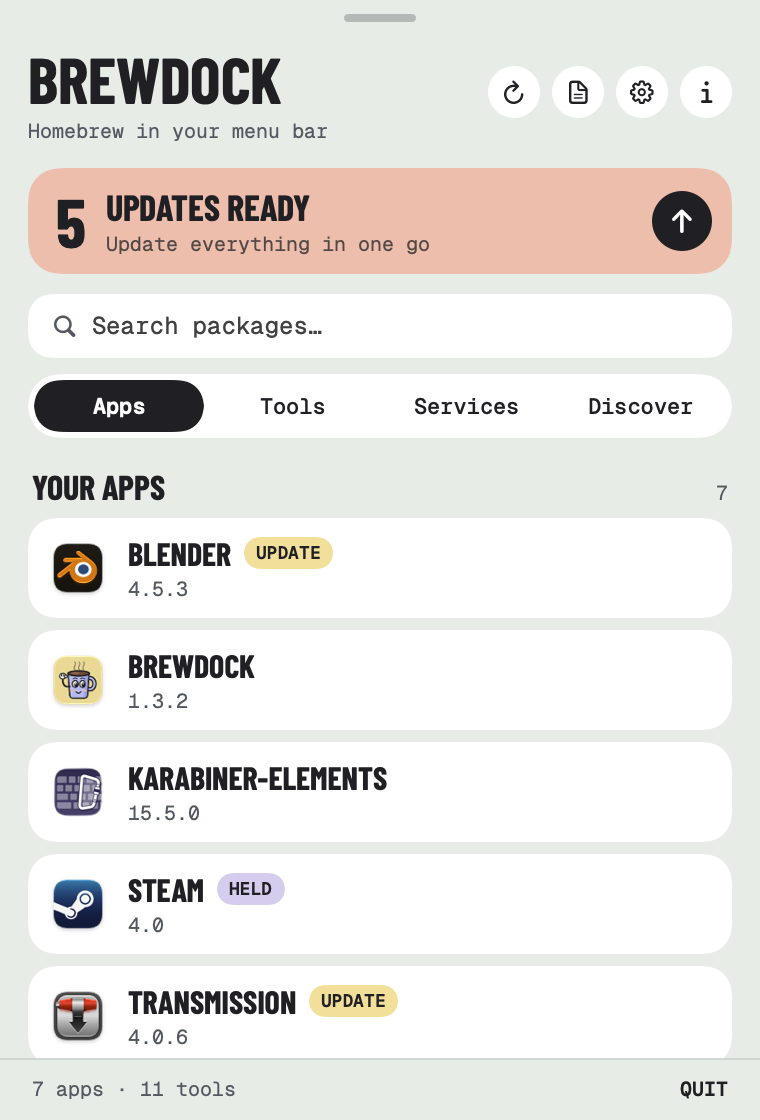
Every app you've installed with Homebrew, with its real icon. Click to open it. Hover or right-click to update it, show it in Finder or uninstall it.
 BrewDock for Mac
Browse, install, update and tidy up your Mac apps and tools without opening the Terminal. A native home for the package manager you already use.
$ brew tap RossNicholson/tap
$ brew trust --cask rossnicholson/tap/brewdock
$ brew install --cask brewdock
Homebrew 7 asks you to trust casks from other taps. On older versions, skip the brew trust line.
For Mac · macOS 13 or later · Needs Homebrew · Open source
What it does
Click the mug in your menu bar, or press ⌥⌘B from any app. Everything you'd normally type into Terminal is right there.
01
Every app you've installed with Homebrew, with its real icon. Click to open it. Hover or right-click to update it, show it in Finder or uninstall it.
02
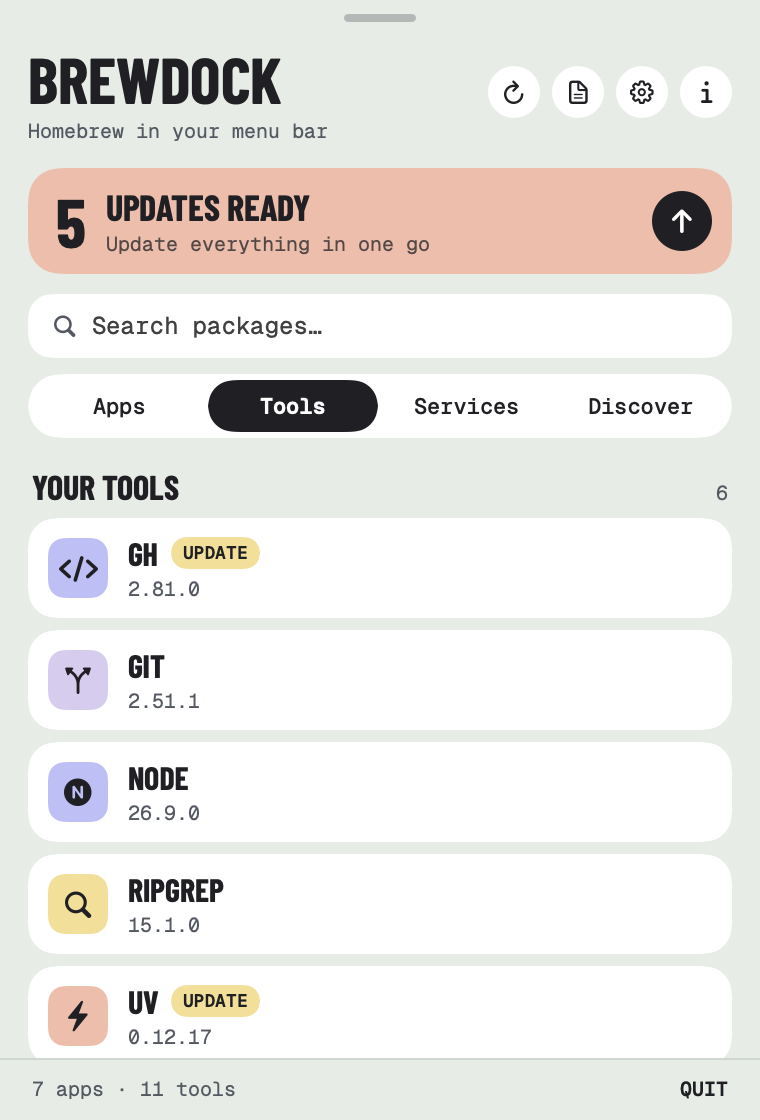
The command-line tools you chose come first. The libraries Homebrew added for you are folded away underneath. Click a tool to open it in Terminal or iTerm2.
03
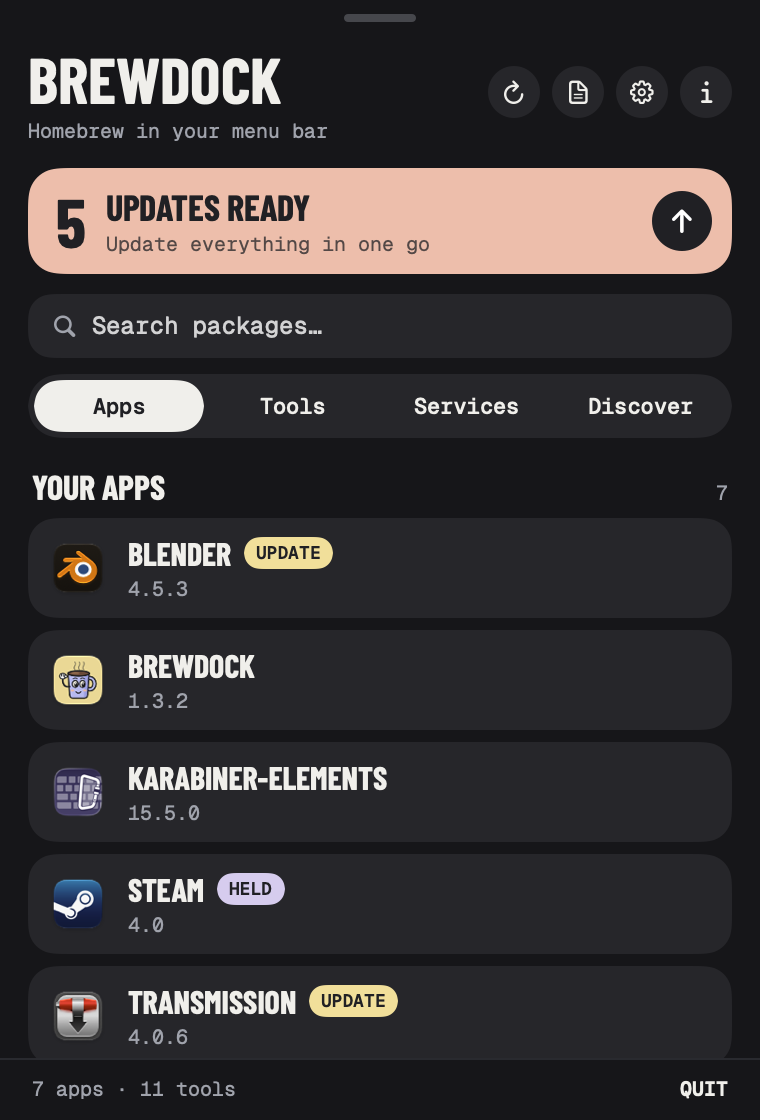
BrewDock checks every few hours. An orange dot means updates are waiting. Update one, or everything at once, with live progress. Optional alerts tell you when new versions land.
04
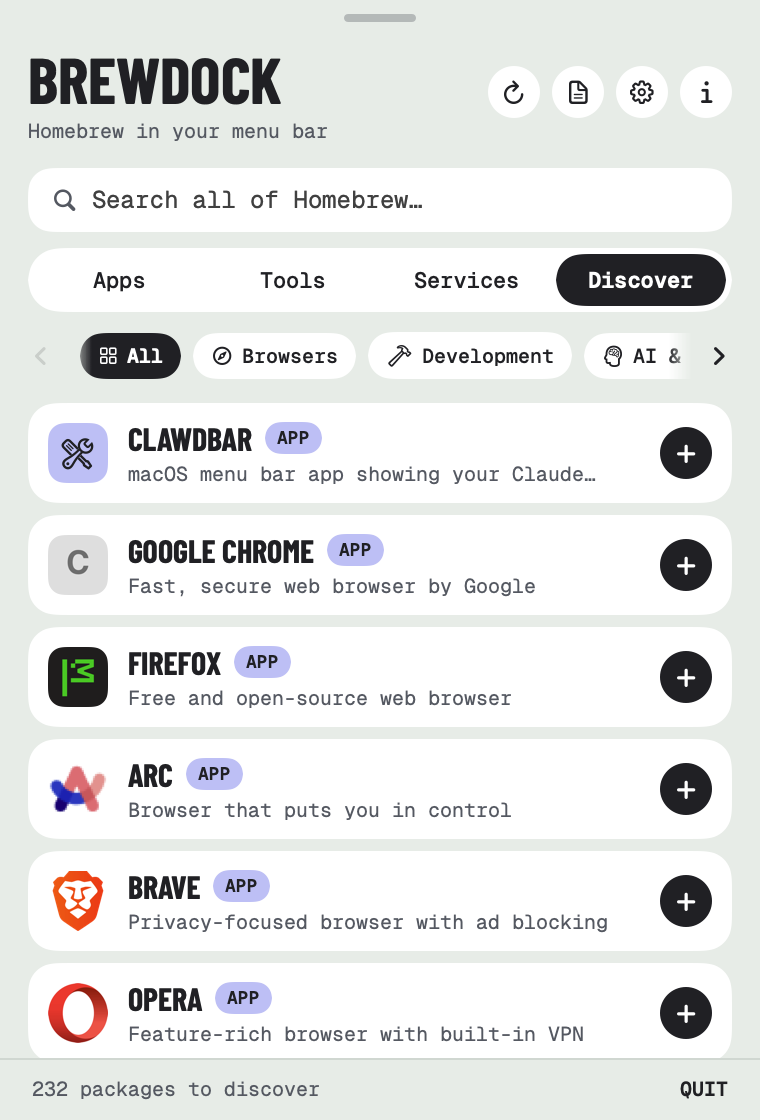
Over 230 hand-picked apps and tools in ten categories, from browsers to databases. You can also search all of Homebrew. One click installs.
05
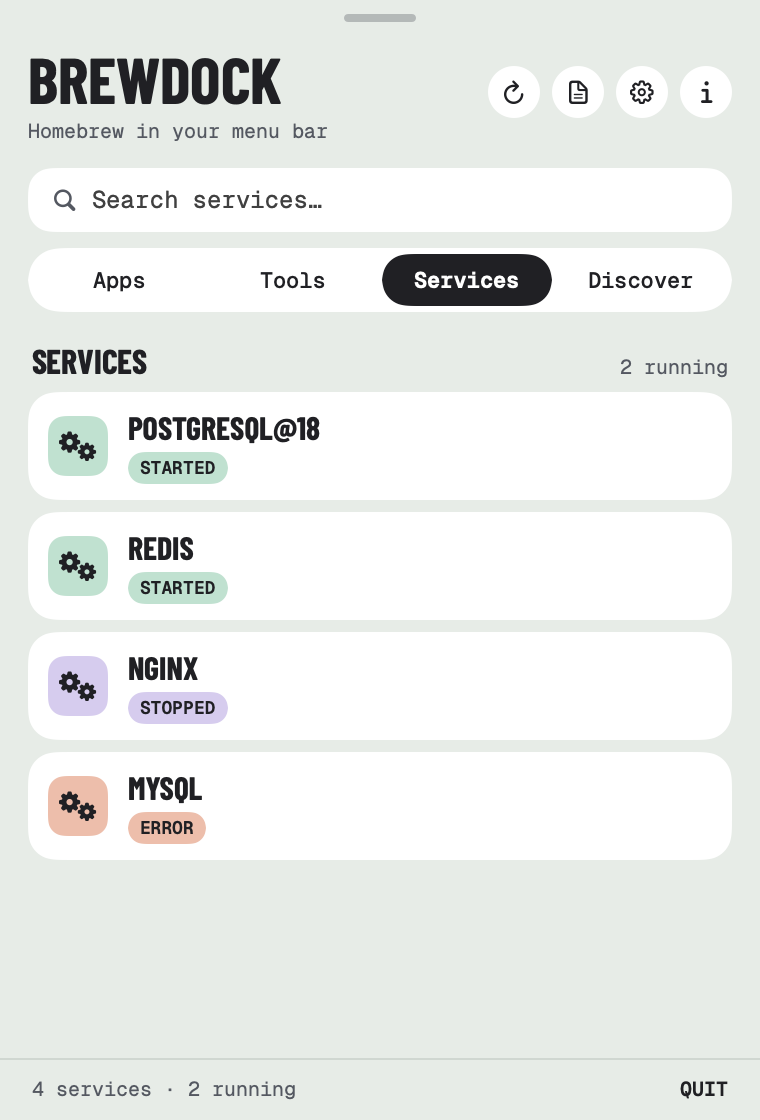
Start, stop and restart Homebrew services like PostgreSQL, Redis and nginx, and see at a glance what's running.
And the little things
The jobs you'd otherwise look up the command for, each one click away.
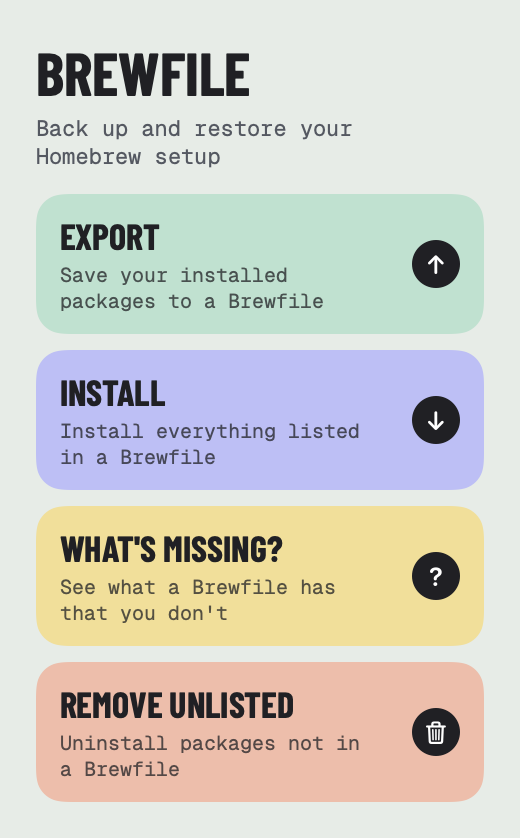
Back up your setup, restore it on a new Mac, see what's missing, or remove anything not on the list.
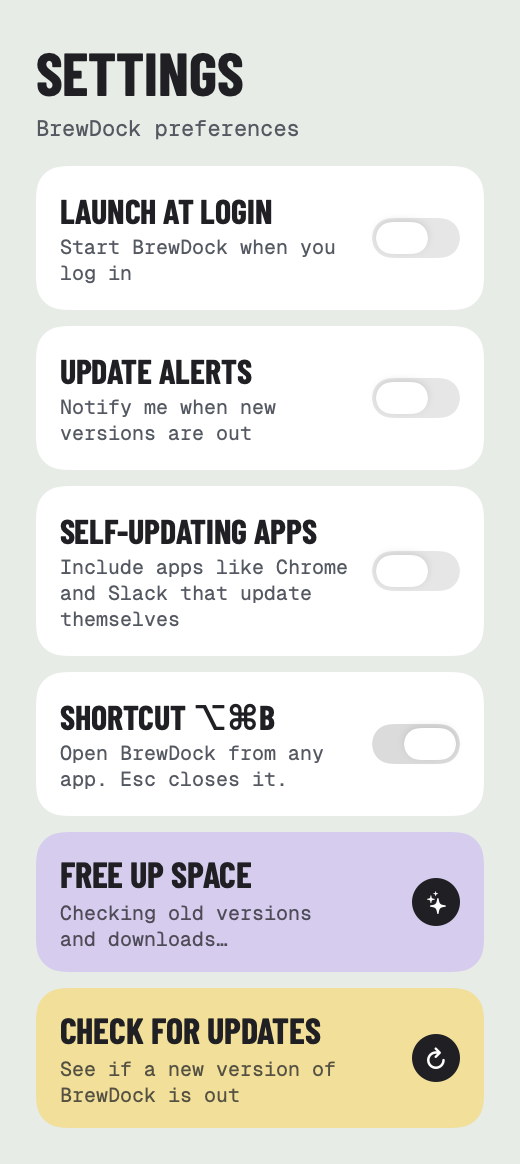
See how much room old versions and cached downloads take, and clear them in one click.
Hold a package at its current version. Tools use brew pin, so Terminal respects it too.
Optionally include apps like Chrome and Slack, which Homebrew normally skips.
Press ⌥⌘B from any app and start typing to search. Esc closes it.
If Homebrew refuses a package from a tap you haven't trusted, BrewDock tells you which one, and asks before trusting it.
Take a look
Built in SwiftUI, with no Electron. It follows your Mac's light or dark mode, works with VoiceOver, and has a small mug who waves hello.
Private by design
BrewDock runs the brew command you already have. Homebrew does all the downloading, just as it does in Terminal.
No sign-up, no email address, no passwords. Install it and click the mug.
No analytics and nothing collected. The only other thing it loads is app icons in Discover, from icon.horse.

Install BrewDock with the three commands above, then click the mug in your menu bar. It's open source, signed and notarized by Apple.
Enjoying it? Buy me a coffee ☕ · Need help? Support