MacPing app icon MacPing for Mac

Every host
at a glance

Ping lots of hosts at once. Each one gets a tile that turns green when it answers, yellow when replies start going missing and red when it's down.

For Mac · macOS 14 or later · No admin password needed · Installs with Homebrew · Open source

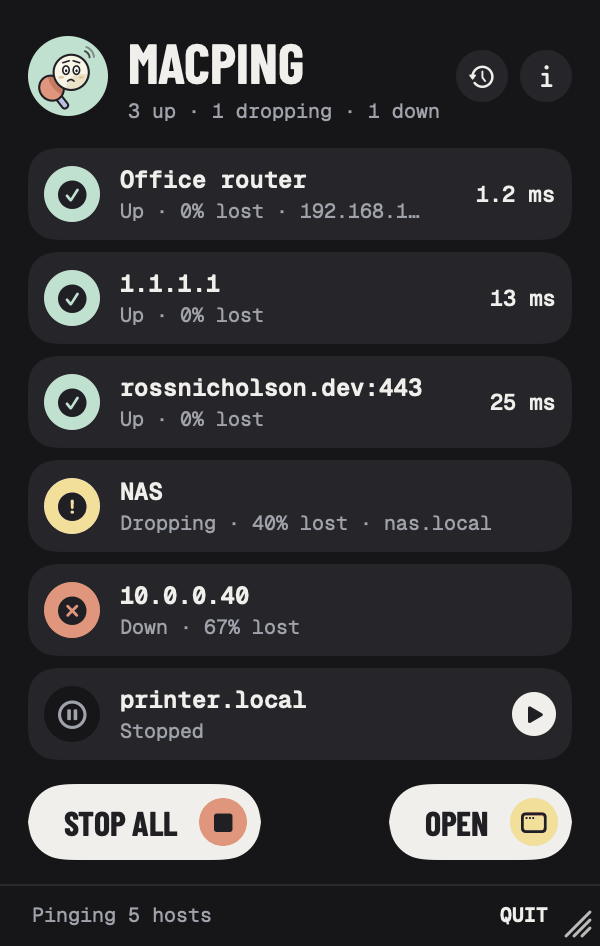
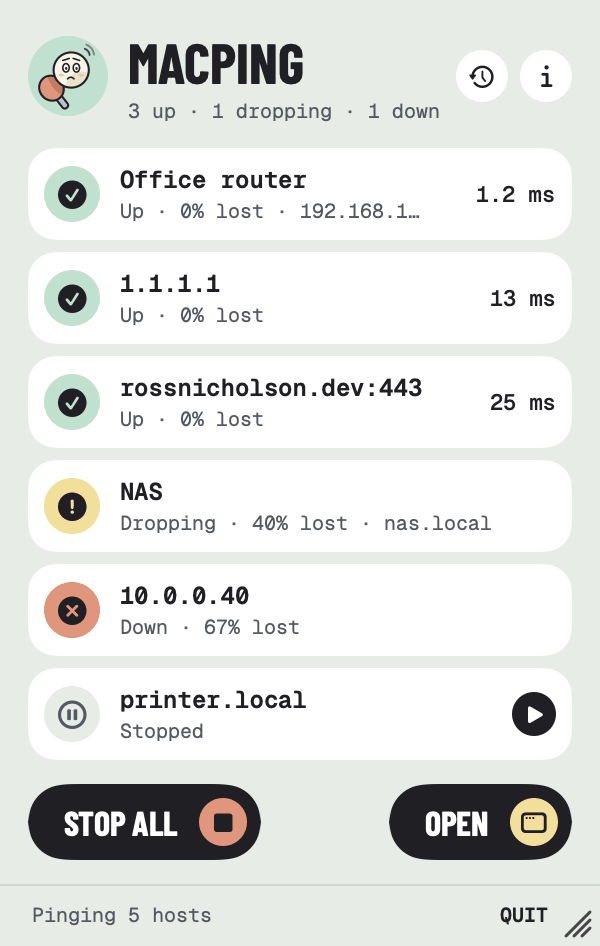
MacPing's menu bar panel: 3 up, 1 dropping, 1 down. Office router, 1.1.1.1 and rossnicholson.dev:443 are up, NAS is dropping, 10.0.0.40 is down and printer.local is stopped

What it does

Up, down
or dropping

Your router, your servers, the sites you look after. Put them all in one window and see straight away when something stops answering.

01

A tile per host

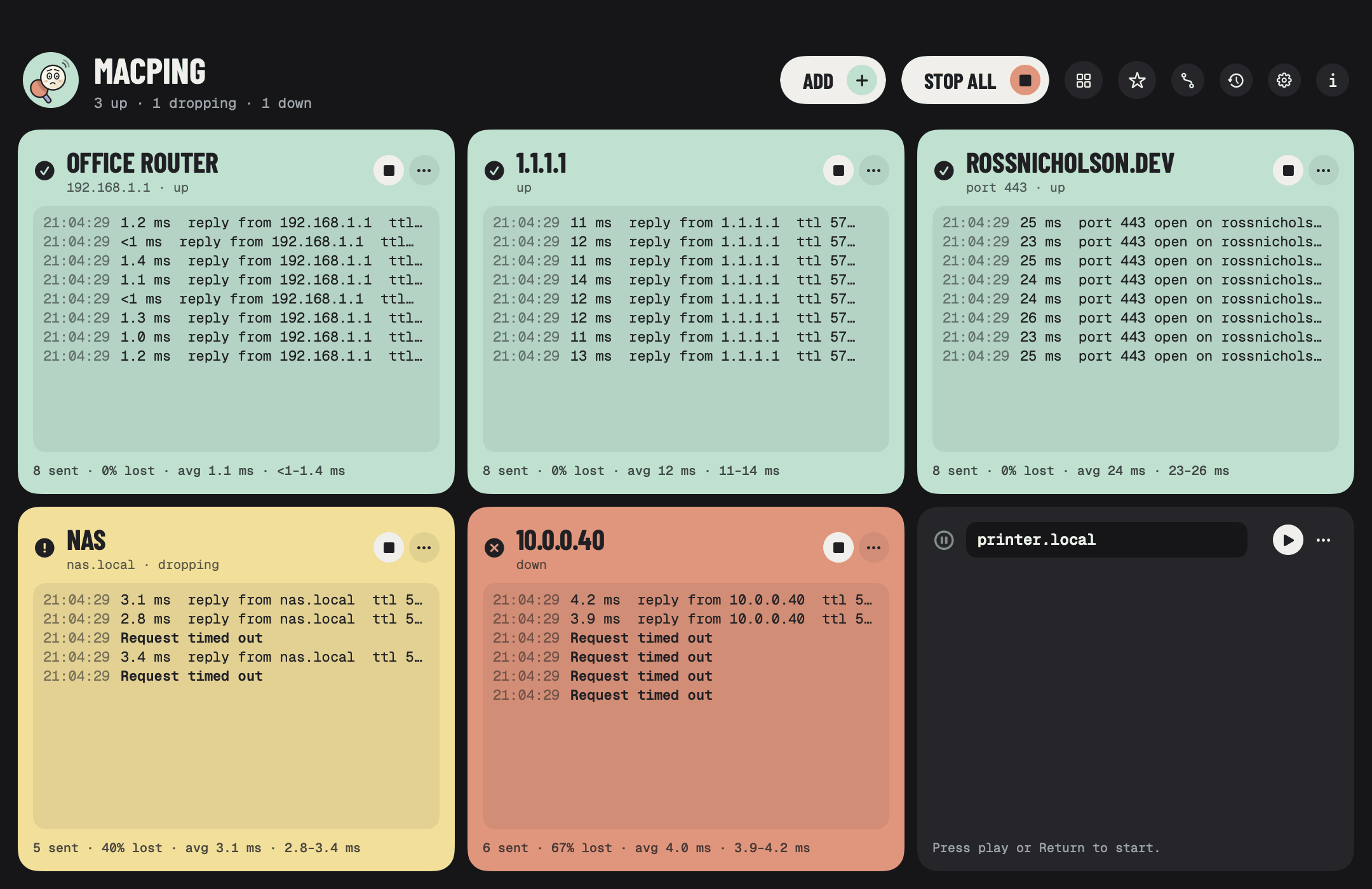
Type a host name or IP address and press Return. Each tile shows a live log of replies with their times, and underneath, how many were sent and lost, the average and the range. Green is up. Yellow means replies are going missing, but not enough in a row to call it down. Red is down: by default two lost in a row, and you can choose how many.
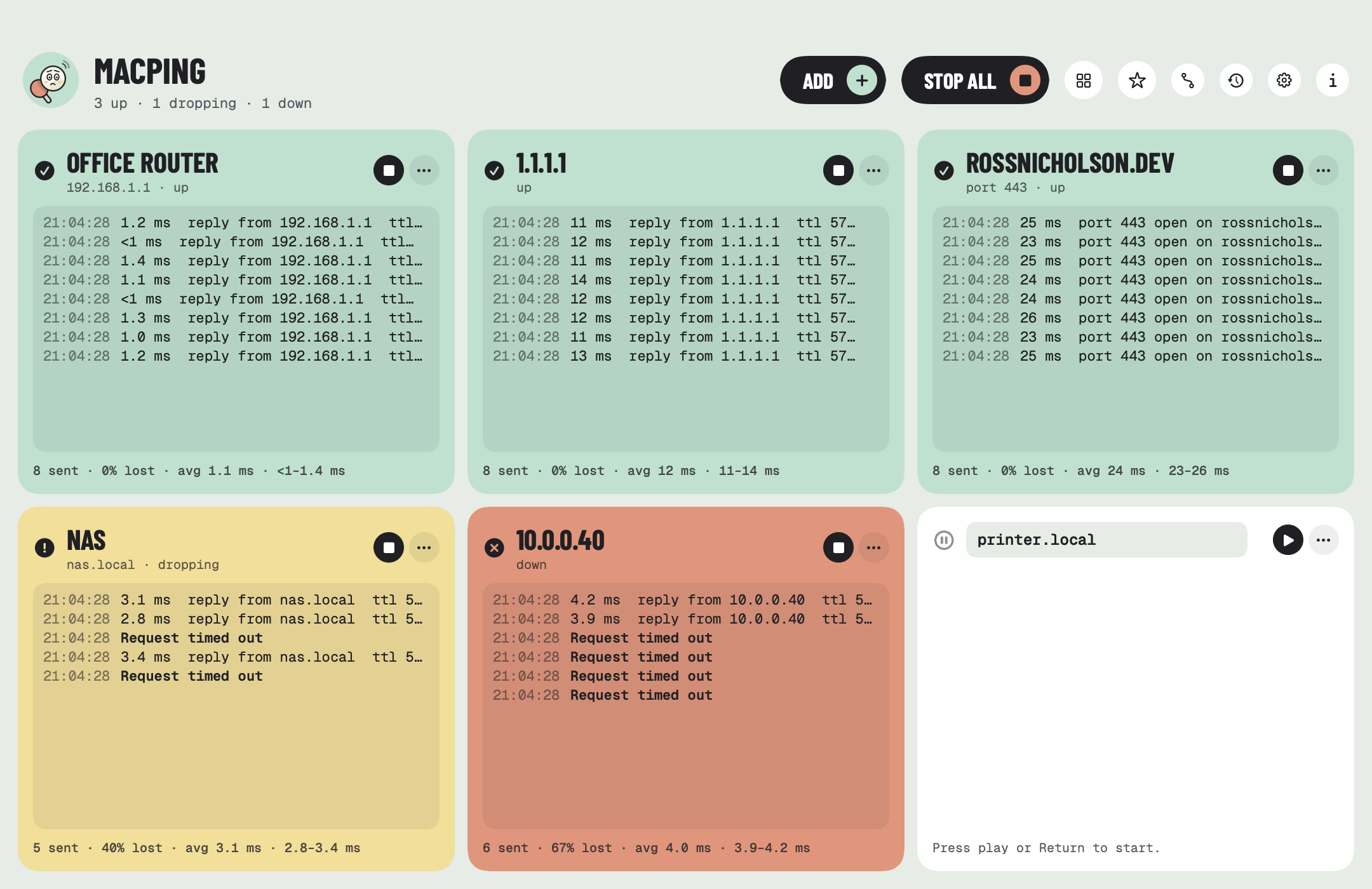
MacPing's window: six tiles. Office router, 1.1.1.1 and rossnicholson.dev port 443 are green and up, NAS is yellow and dropping, 10.0.0.40 is red and down, and printer.local is stopped

02

Lots at once

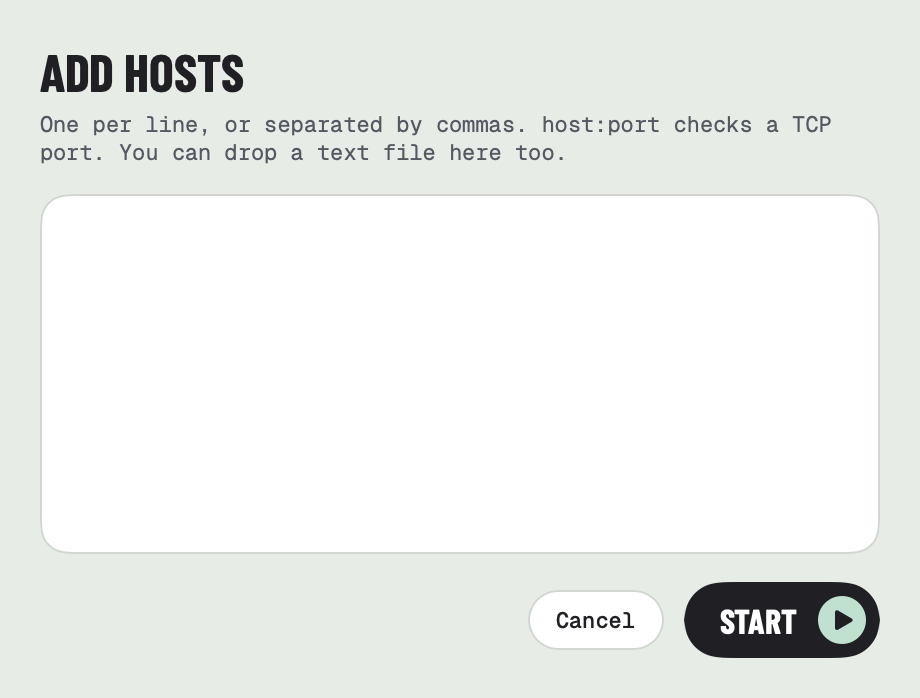
Paste a list, or drop a text file of hosts on the window. Type host:port, such as example.com:443, to check that a service is answering, not just the machine. IPv4 and IPv6 both work. Drag tiles to reorder them, and let the grid fit the window or pick a number of columns.

The Add hosts sheet: one per line, or separated by commas. host:port checks a TCP port, and you can drop a text file there too

03

Trace the route

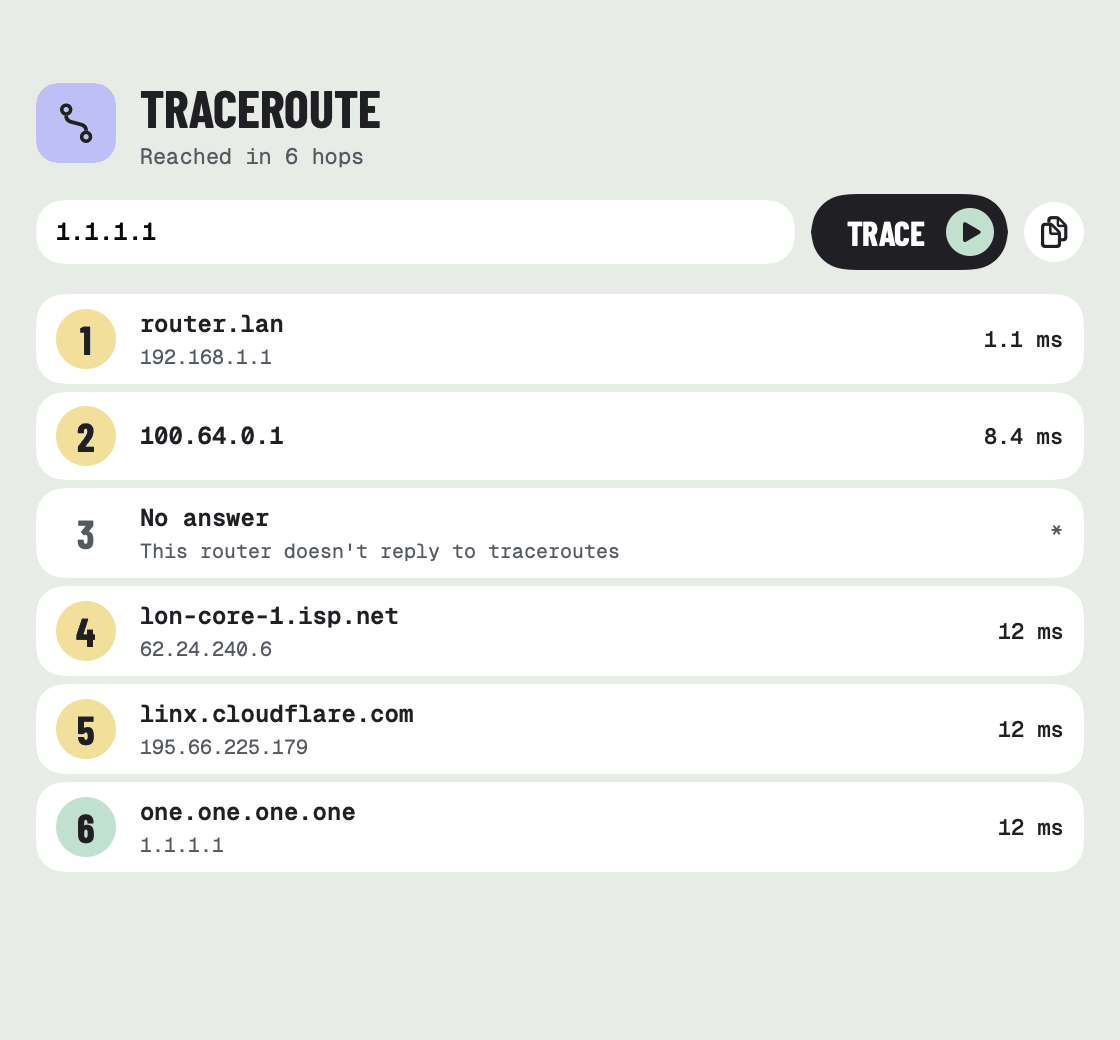
See every router between your Mac and a host, with names and times. Start one from a tile's ⋯ menu or the top bar, and run several side by side.

A traceroute to 1.1.1.1, reached in 6 hops: router.lan, 100.64.0.1, a router that doesn't answer, lon-core-1.isp.net, linx.cloudflare.com and one.one.one.one, each with its time

04

Every change, logged

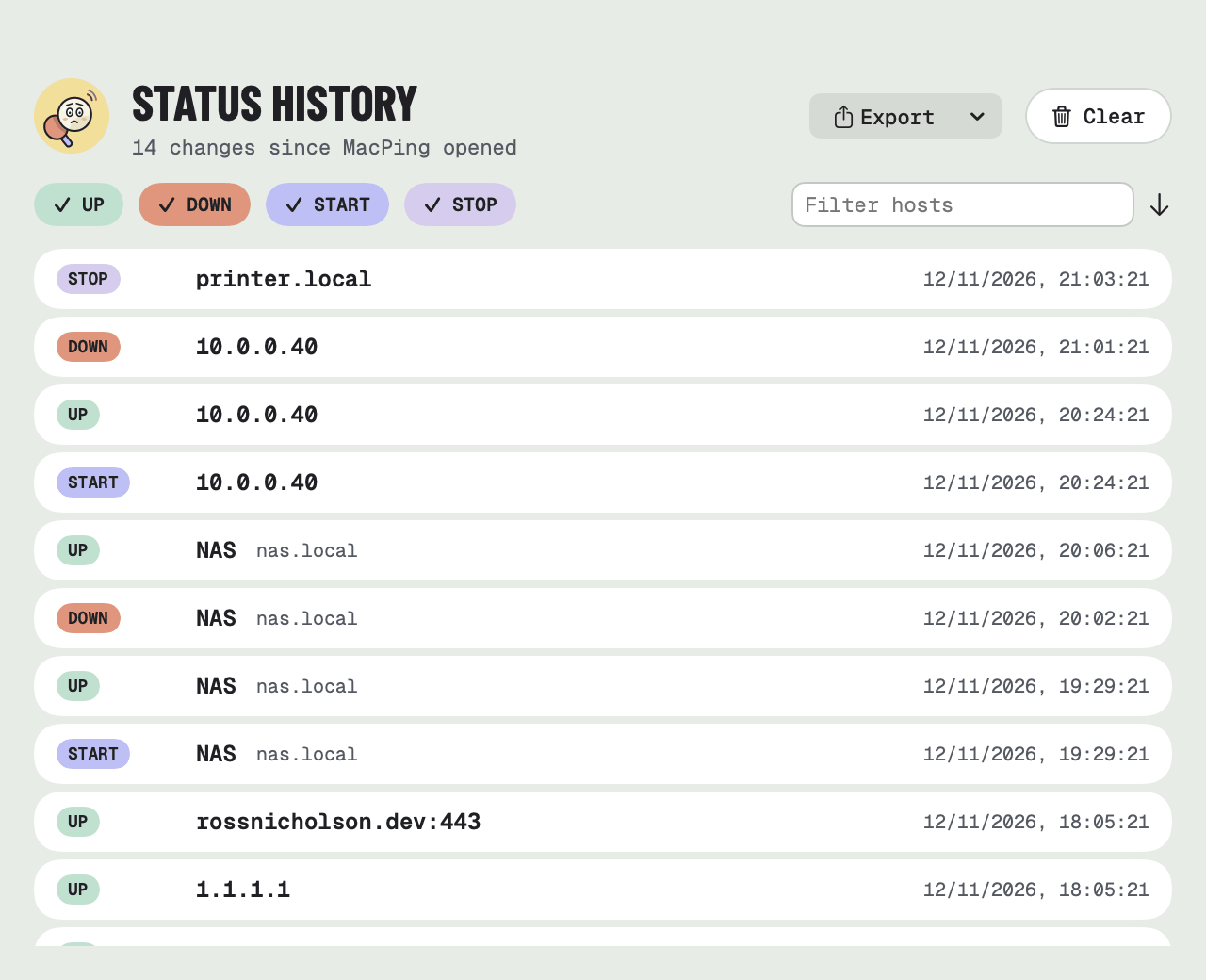
Status history lists every time a host went down or came back, and when you started or stopped one. Filter it by kind or host, then export it as CSV, or tab- or space-separated text.

Status history: 14 changes since MacPing opened, with Up, Down, Start and Stop filters, an Export button and a list of changes with their times

05

Always in view

The menu bar icon shows how many hosts are down, in red. Click it for a list of every host with its latest time. Close the window and MacPing keeps pinging up there.

The Mac menu bar showing MacPing's icon, a ball with an exclamation mark, and a red 1 beside it
The menu bar panel listing each host with its status and latest time, with Stop all and Open buttons

06

Your way

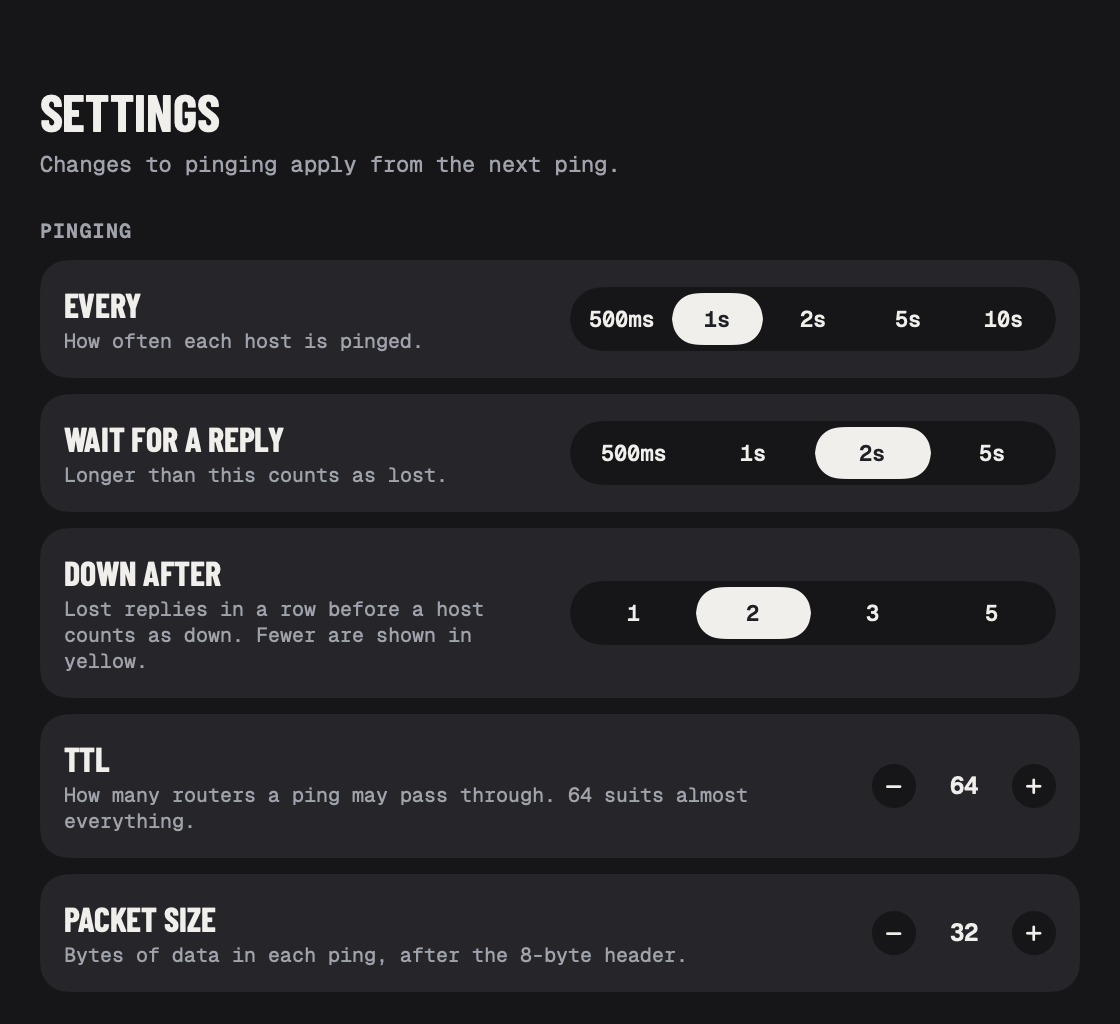
Choose how often to ping, how long to wait for a reply, and how many lost in a row count as down. Set the TTL and packet size, keep the window on top, open at login, and start blank, with your last hosts or with a favourite. Hosts given on the command line are pinged straight away.

Settings in dark mode: how often to ping, how long to wait for a reply, lost replies before a host counts as down, TTL and packet size

And the little things

Thoughtful touches

Small details that make it easy to live with every day.

No admin password

MacPing sends real ICMP echo requests, like the ping command, using the unprivileged ICMP sockets macOS gives every app. No helper tool, and no ping running behind the scenes.

Alerts

A notification and a sound when a host goes down or comes back, and an optional log file with a line for each change.

Aliases

Give hosts friendly names, like Office router, to show on tiles, in alerts and in the history.

Favourites

Save a set of hosts, with a column layout, and load it again in one click.

Updates itself

Check for updates in Settings. MacPing quits, updates through Homebrew and reopens.

Native, light and dark

Built in SwiftUI with no Electron. Light and dark mode, and a ping-pong ball that smiles while everything's up and frets when something's down.

Private by design

Your hosts
stay put

On your Mac

Your hosts, aliases and favourites are kept on your Mac. The status history stays in memory until you export it.

Only your hosts

MacPing only contacts the hosts you add, after looking up their names. It checks for updates only when you press Check for updates.

No tracking

No analytics, no accounts and nothing collected. It's open source, so you can check.

Credit where it's due

Inspired by vmPing

The idea, and the set of features, come from vmPing, a Windows app by r-smith. MacPing is a separate app, written from scratch for the Mac. On Windows? Try vmPing itself.

Download & install

MacPing is free. It installs with Homebrew, a free and widely used tool for installing Mac apps and keeping them up to date. You only need to set it up once.

  1. Get Homebrew. Download the installer, open it and click through, like any Mac installer. It asks for your Mac password. Already have Homebrew? Skip to step 2.

    Download Homebrew
  2. Open Terminal, an app that comes with every Mac. Press ⌘ Space, type Terminal and press Return. A window with a blinking cursor opens.

  3. Click Copy, paste into Terminal with ⌘ V and press Return. Text scrolls past while Homebrew installs MacPing. It's done when it stops.

    Install MacPing
    $ brew tap RossNicholson/tap$ brew trust --cask rossnicholson/tap/macping$ brew install --cask macping

    See command not found: brew? Quit Terminal with ⌘ Q, open it again and paste once more.

  4. Open MacPing from your Applications folder. If your Mac asks whether you're sure you want to open it, click Open. Then type a host name or IP address in a tile and press Return.

What your Mac will ask

Your Mac checks with you before an app can do certain things. Here's what MacPing asks for, and what to click.

  • Notifications. The first time a host goes down or comes back, macOS asks to let MacPing send notifications. Click Allow to be told, or turn notifications off in Settings.
  • Open at login. If you turn it on in Settings, macOS shows a notice that a login item was added. That's expected.

On an older Homebrew, an error about brew trust is safe to ignore.

See what's up

MacPing is free, open source, and signed and notarized by Apple.

Enjoying it? Buy me a coffee ☕ · Need help? Support

Also from me: Repo Radar, every repo with work you haven't pushed, and BrewDock, Homebrew in your menu bar

MacPing is an independent app and isn't affiliated with or endorsed by vmPing, its author or Homebrew.