Mop Up app icon Mop Up for Mac

A tidier Mac,
for free

Clear out the junk your Mac collects, uninstall apps along with the files they leave behind, and see where your disk space has gone. Nothing is removed until you say so.

For Mac · macOS 14 or later · Free · Installs with Homebrew · Open source

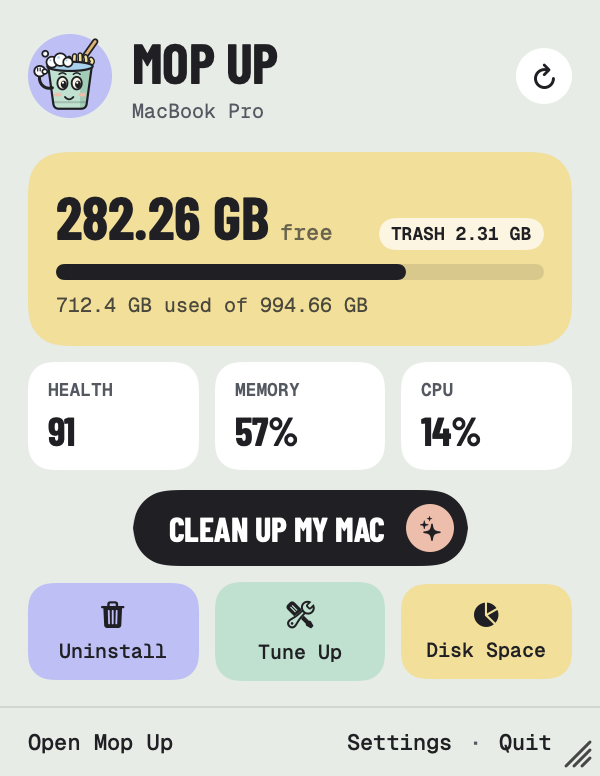
Mop Up's menu bar panel: 282 GB free, health 91, memory 57%, CPU 14%, and a Clean up my Mac button

What it does

Five jobs,
done properly

No Terminal, no jargon. Every job shows you what it found first, and you decide.

01

Clean up

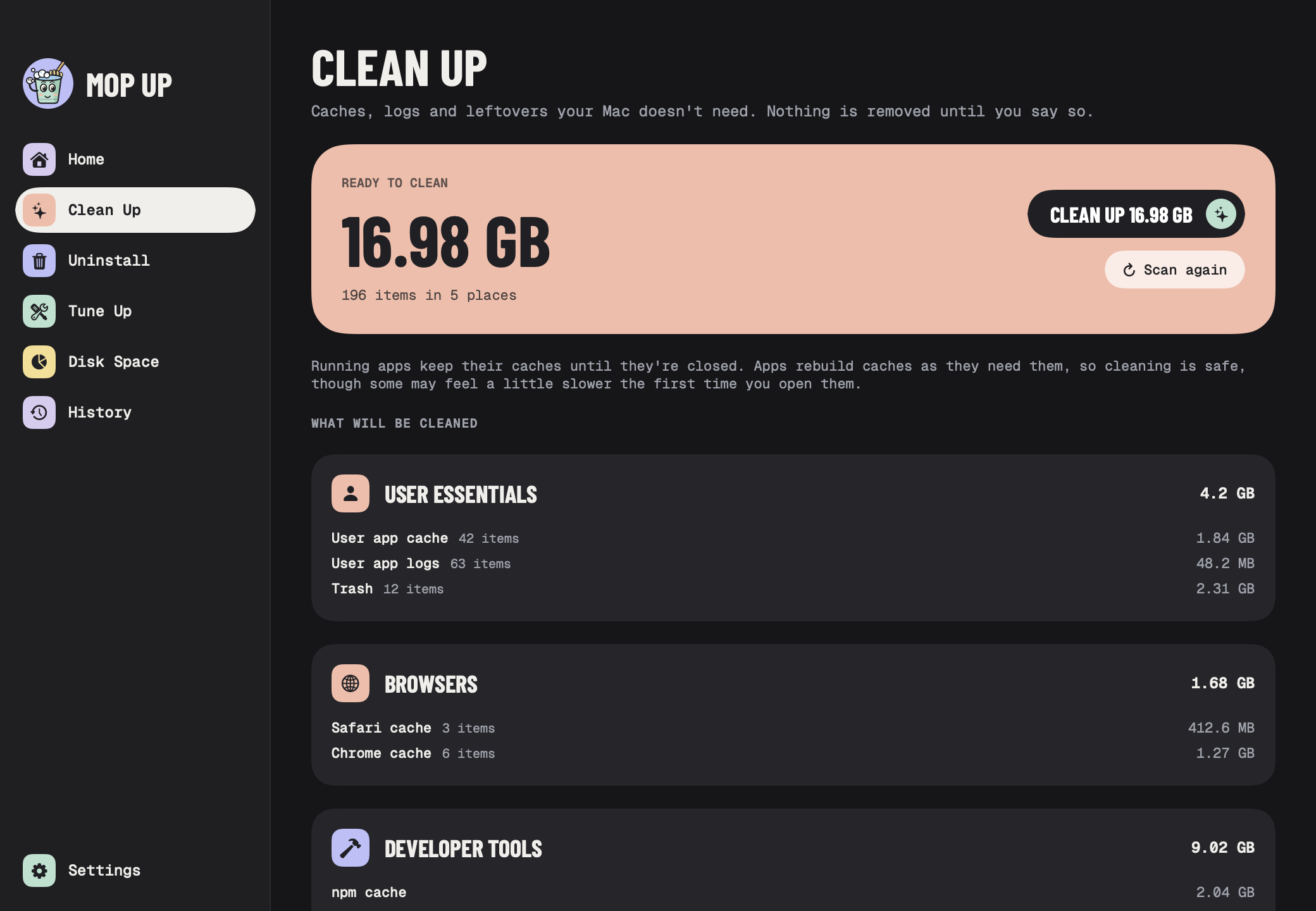
Mop Up looks through app caches, logs, browser leftovers, developer files and bits left behind by apps you've deleted. You see how much it found and where, file by file if you like, before anything is cleaned. Big things it won't touch on its own, like old iPhone backups, are listed separately so you can decide. It also empties your Trash, so check there for anything you still want first.
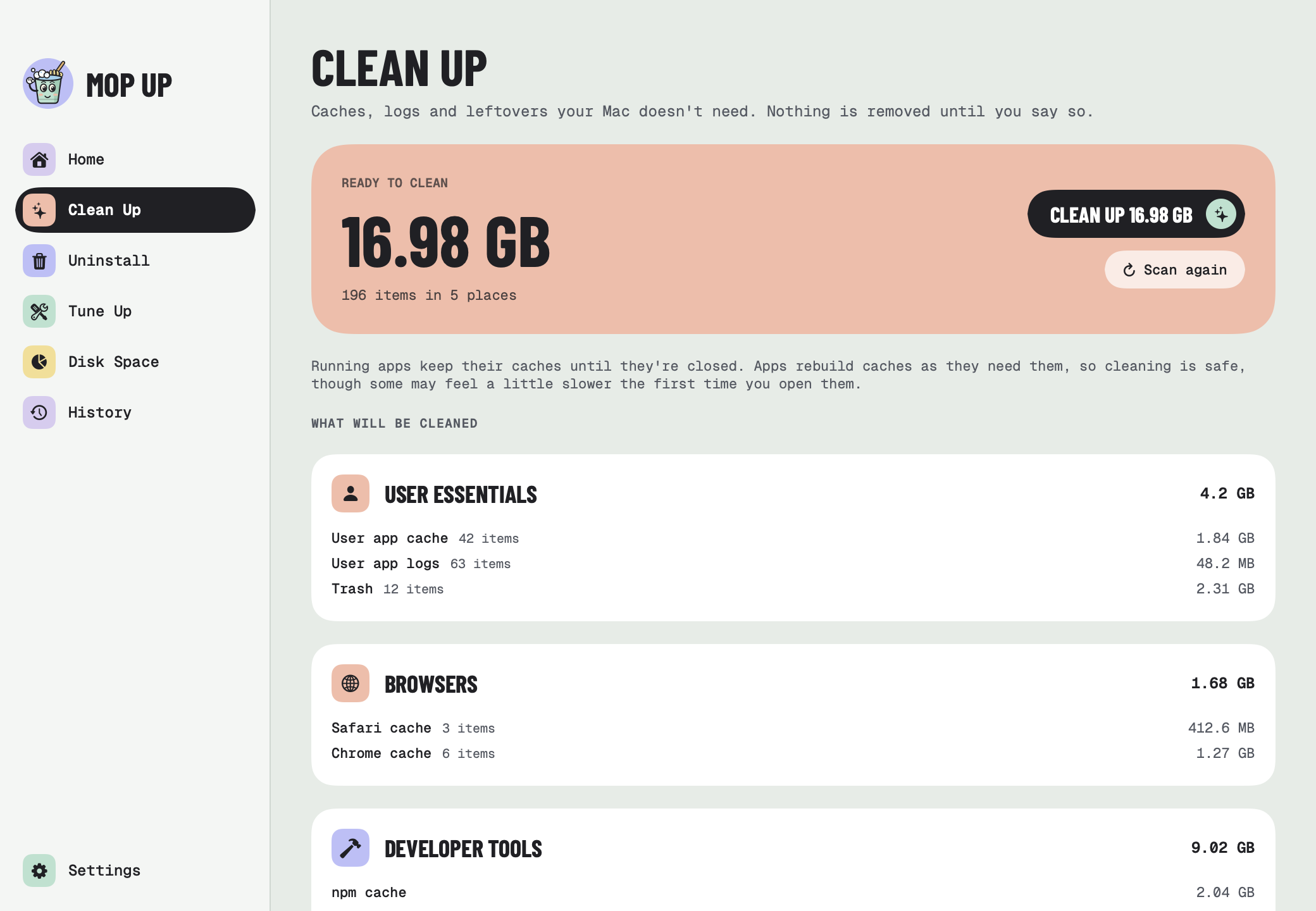
Clean Up showing 16.98 GB ready to clean across user caches, browsers and developer tools

02

Uninstall apps

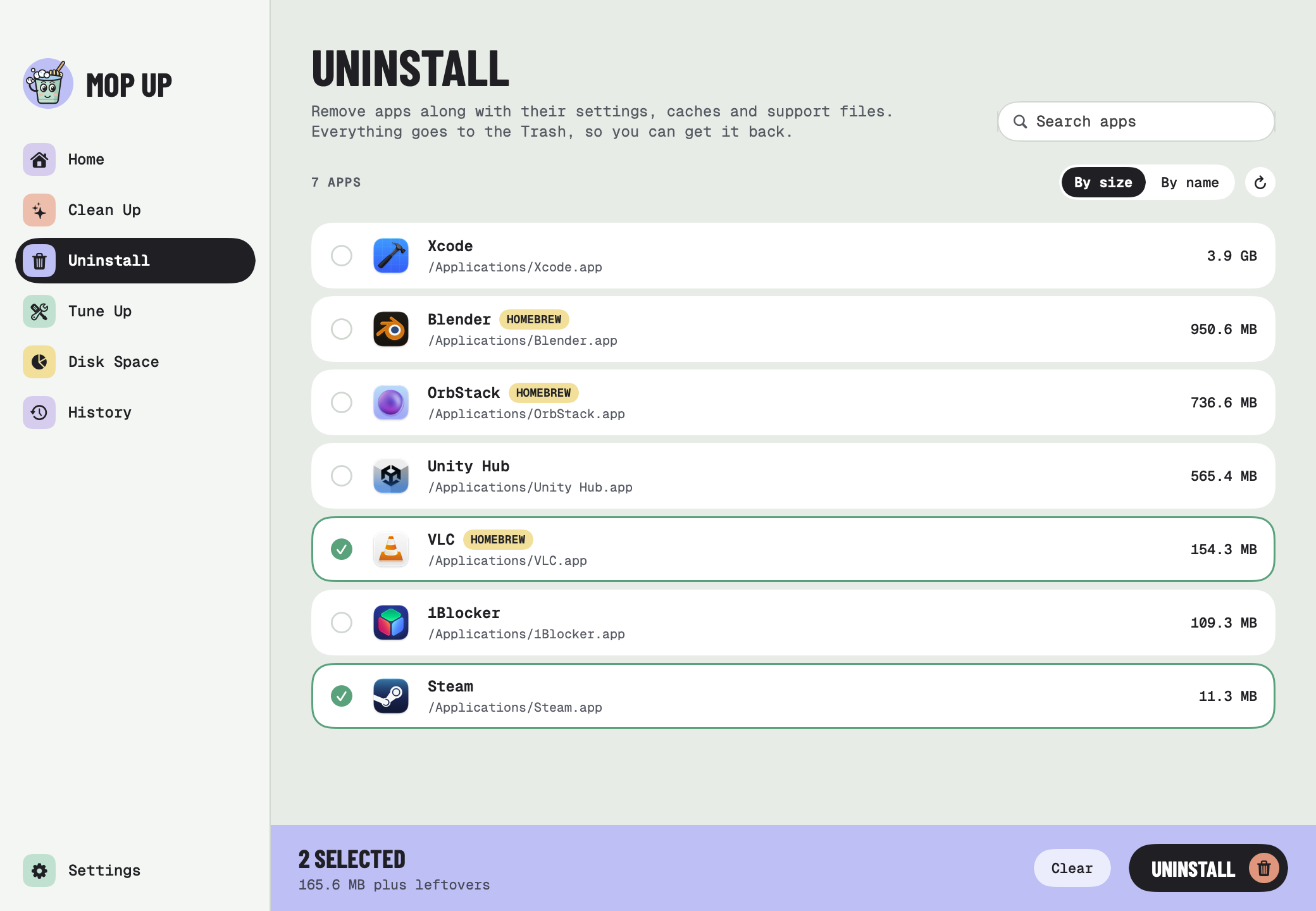
Dragging an app to the Trash leaves its settings, caches and support files behind. Mop Up finds them too. Pick the apps, check the list of files, then move everything to the Trash, where you can still get it back until the Trash is emptied. Apps that are open have to be quit first, so nothing unsaved is lost.

The Uninstall list sorted by size, with VLC and Steam selected

03

Tune up

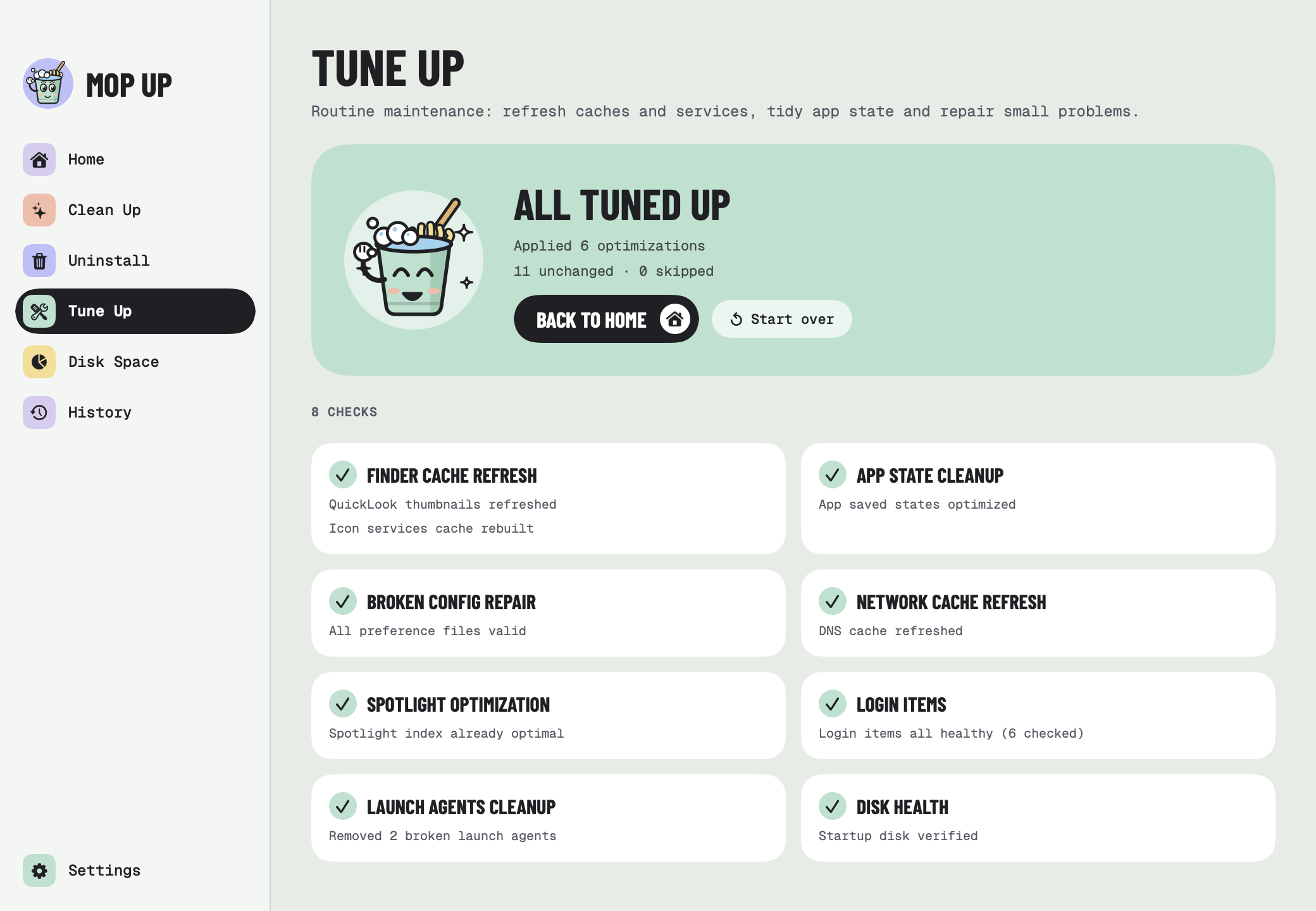
The routine maintenance macOS doesn't do on its own. Mop Up refreshes Finder, Spotlight and network caches, checks preferences, login items and launch agents, and fixes what it safely can. You can check first without changing anything.

Tune Up finished: 6 optimizations applied, with a grid of passed checks

04

Find the space

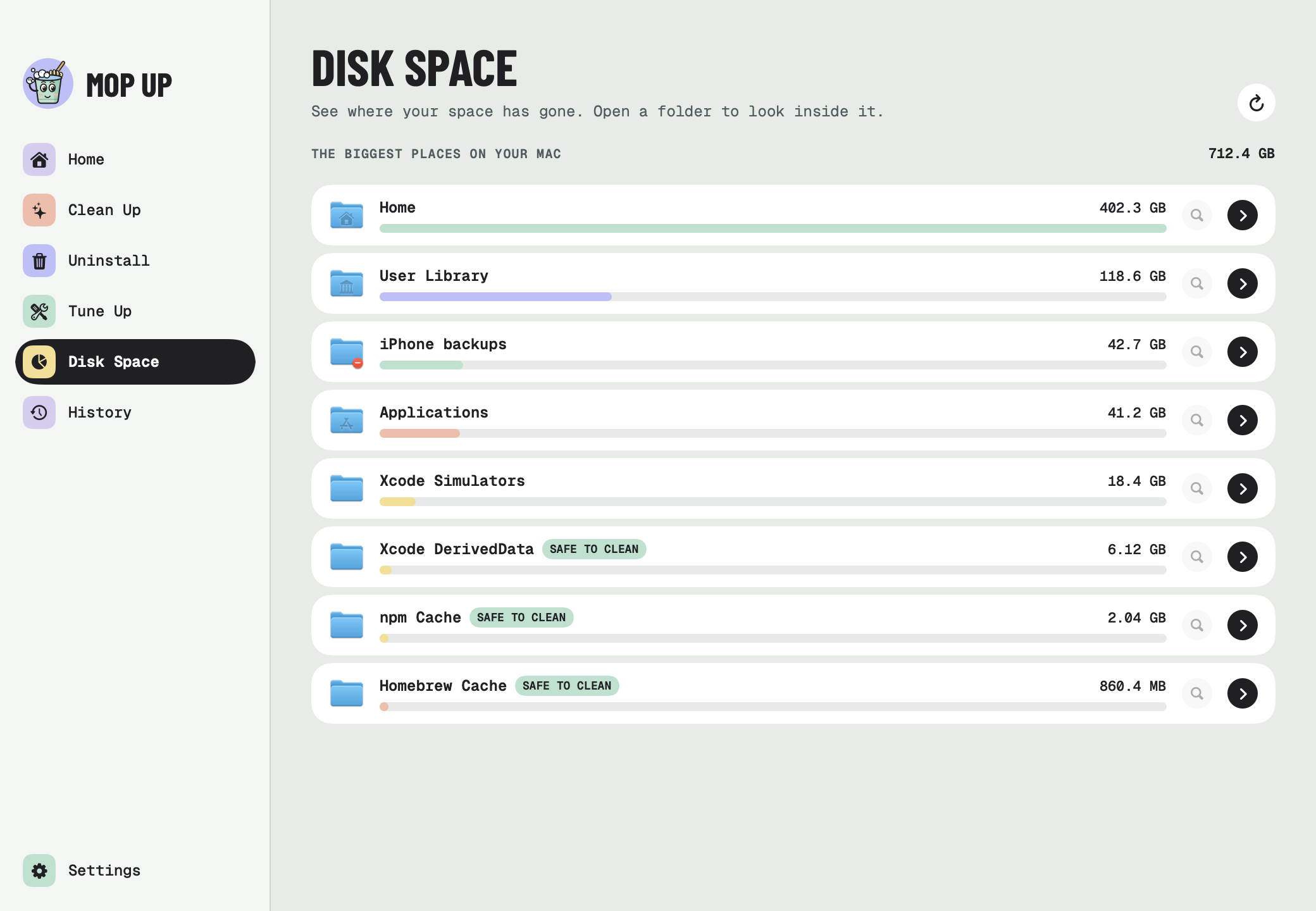
See the biggest places on your Mac, then open folders to look inside. Things that are safe to clean are labelled. Show anything in Finder, or move it to the Trash from right there.

Disk Space listing the biggest folders, with Xcode DerivedData, npm and Homebrew caches marked safe to clean

05

Your Mac at a glance

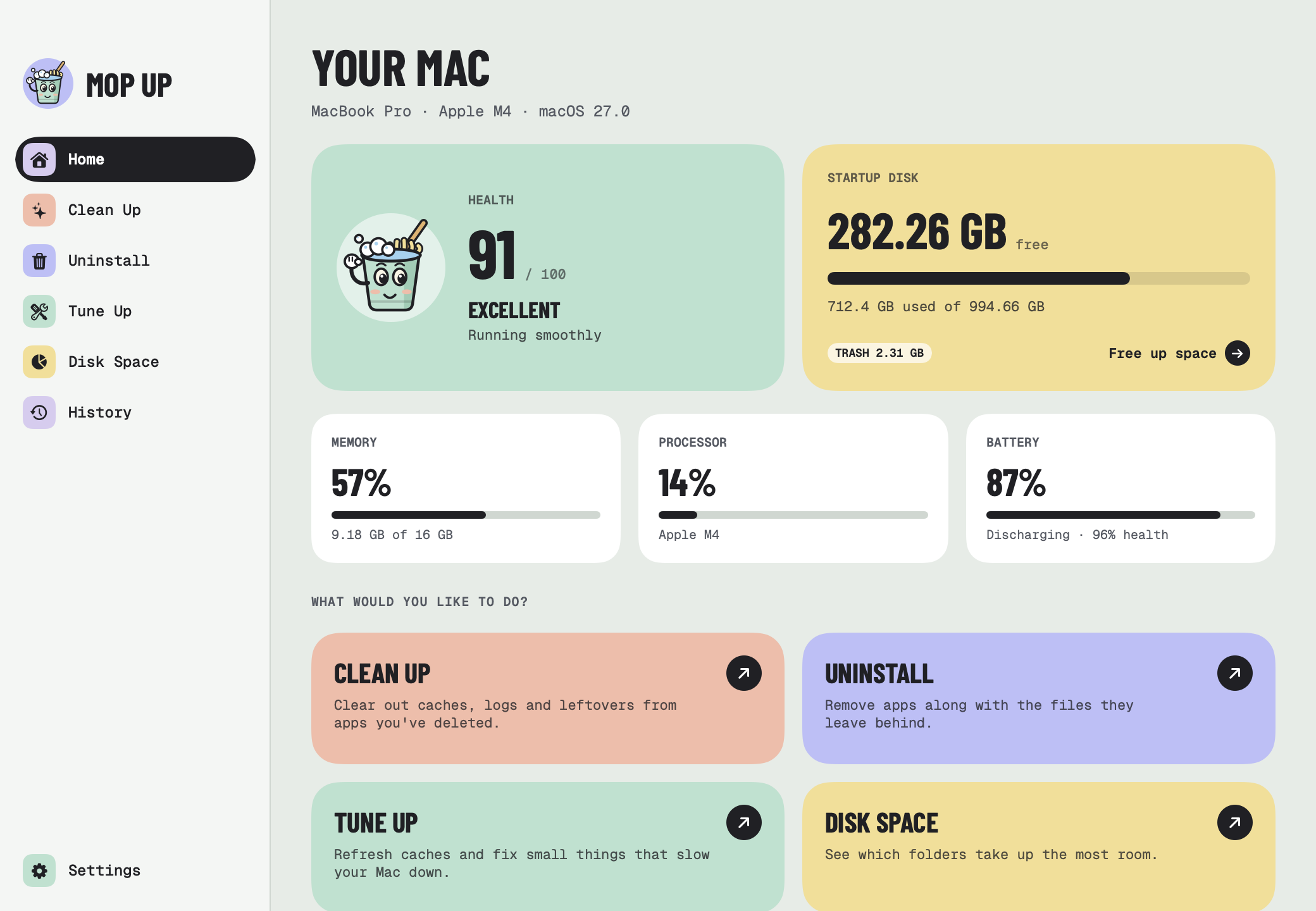
A health score, free disk space, memory, processor and battery, updated live. Mop Up also sits in the menu bar with your free space, so you know when it's time for a clean. Drag the corner of its panel to make it bigger.

Home: health 91 out of 100, 282 GB free, memory, processor and battery

Careful by default

Safe to use

A cleaner should never surprise you. These are the rules Mop Up works by.

You decide

Every clean-up and uninstall shows you what it found first. Nothing happens until you press the button.

Trash first

Uninstalled apps and anything you remove in Disk Space go to the Trash, so you can change your mind until it's emptied.

Hands off your files

Apart from emptying the Trash, Clean Up only clears things apps rebuild on their own, like caches and logs. It never goes through your documents, photos or music.

Open apps are safe

Caches of running apps are left alone, and an app has to be quit before it can be uninstalled.

History

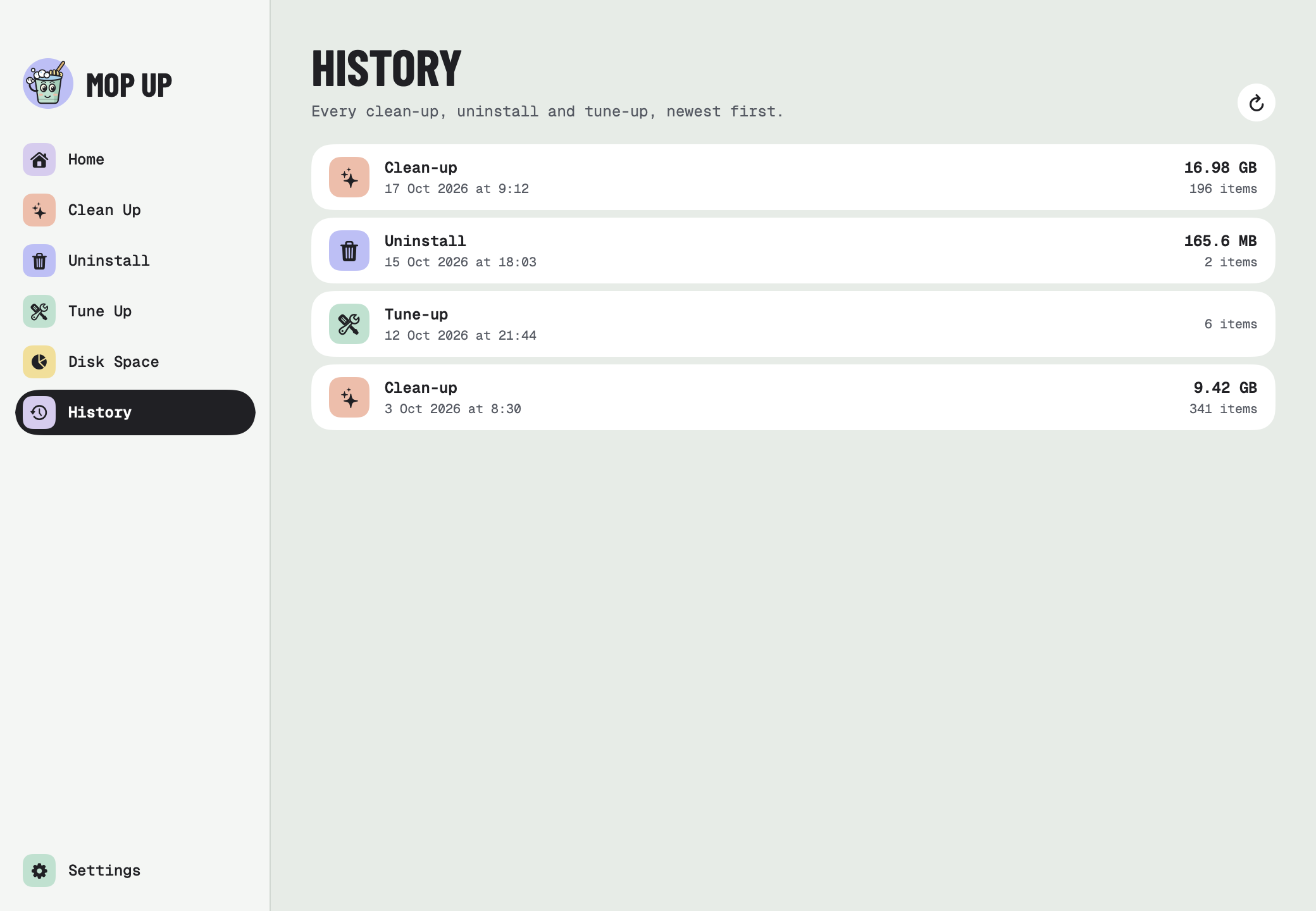
Every clean-up, uninstall and tune-up is listed, with how much space it freed.

Your password stays yours

When a step needs admin rights, a password dialog asks first. Your password goes straight to macOS and is never saved or sent anywhere.

Private by design

Your Mac.
Your files.

Runs on your Mac

Every scan and clean happens on your Mac. Mop Up doesn't upload anything, anywhere.

No account

No sign-up, no email address, no subscription. Install it, open Clean Up and press Scan my Mac.

No tracking

No analytics, no adverts and nothing collected. Ever.

Powered by Mole

Built on great open source

Mop Up's cleaning engine is Mole, the open-source Mac cleaner by tw93. Mole does the scanning and cleaning; Mop Up is the friendly window on top. If you're happy in the Terminal, try Mole itself.

Download & install

Mop Up is free. It installs with Homebrew, a free and widely used tool for installing Mac apps and keeping them up to date. You only need to set it up once.

  1. Get Homebrew. Download the installer, open it and click through, like any Mac installer. It asks for your Mac password. Already have Homebrew? Skip to step 2.

    Download Homebrew
  2. Open Terminal, an app that comes with every Mac. Press ⌘ Space, type Terminal and press Return. A window with a blinking cursor opens.

  3. Click Copy, paste into Terminal with ⌘ V and press Return. Text scrolls past while Homebrew installs Mop Up. It's done when it stops.

    Install Mop Up
    $ brew tap RossNicholson/tap$ brew trust --cask rossnicholson/tap/mopup$ brew install --cask mopup

    See command not found: brew? Quit Terminal with ⌘ Q, open it again and paste once more.

  4. Open Mop Up from your Applications folder. If your Mac asks whether you're sure you want to open it, click Open. Then open Clean Up and press Scan my Mac.

What your Mac will ask

Your Mac checks with you before an app can do certain things. Here's what Mop Up asks for, and what to click.

  • Full Disk Access. Mop Up shows a button that opens System Settings. Turn Mop Up on there, then come back. It needs this to check every cache and find the files apps leave behind.
  • Your Mac password. Some clean-ups, tune-ups and uninstalls need it. The dialog is titled Mop Up.
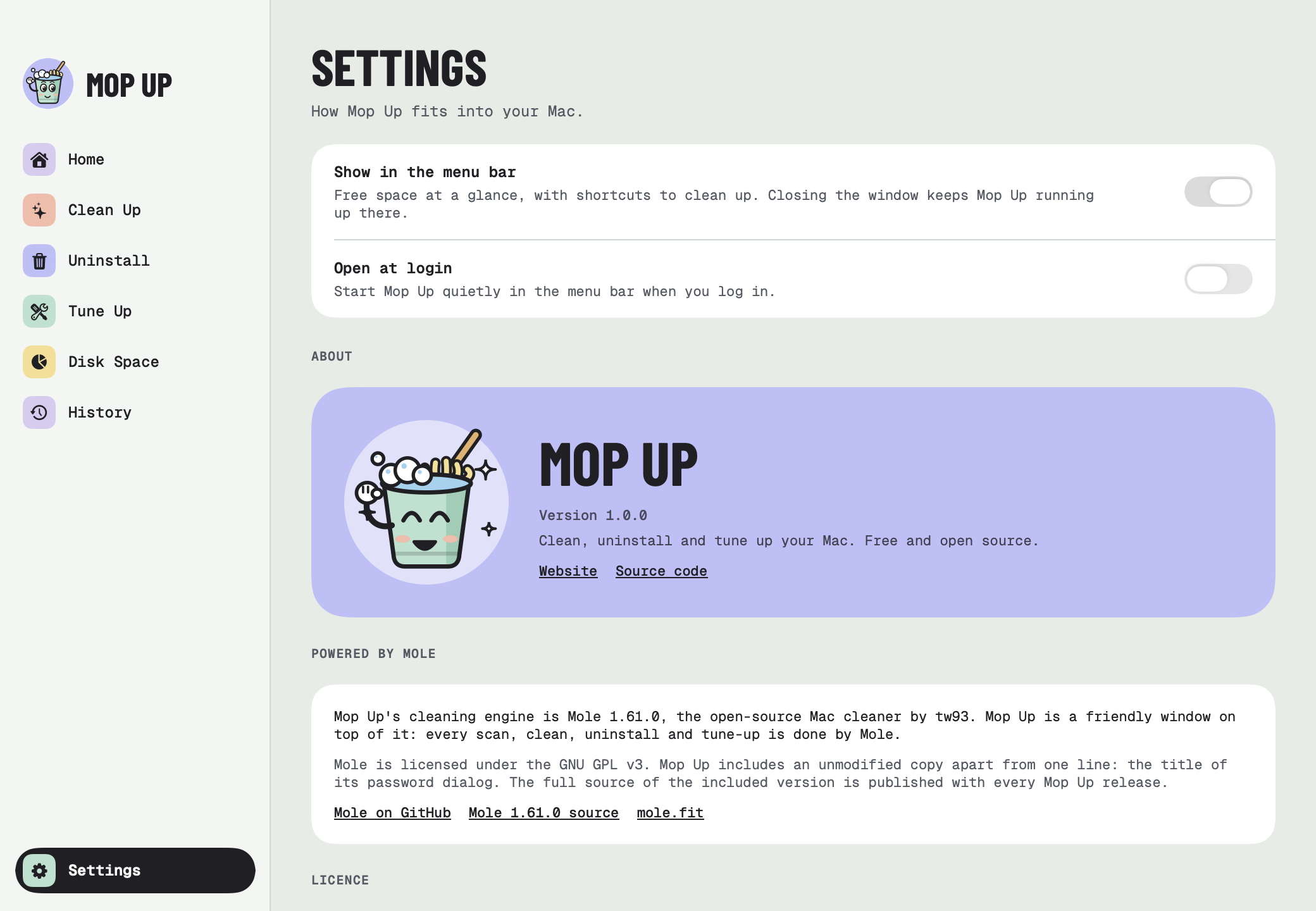
  • Open at login. If you turn it on in Settings, macOS shows a notice that a login item was added. That's expected.

On an older Homebrew, an error about brew trust is safe to ignore.

Let's mop up

Mop Up is free, open source, and signed and notarized by Apple.

Enjoying it? Buy me a coffee ☕ · Need help? Support

Also from me: BrewDock, Homebrew in your menu bar, and ClawdBar, Claude Code limits in your menu bar