Taurine app icon Taurine for Mac

Keep your
Mac awake

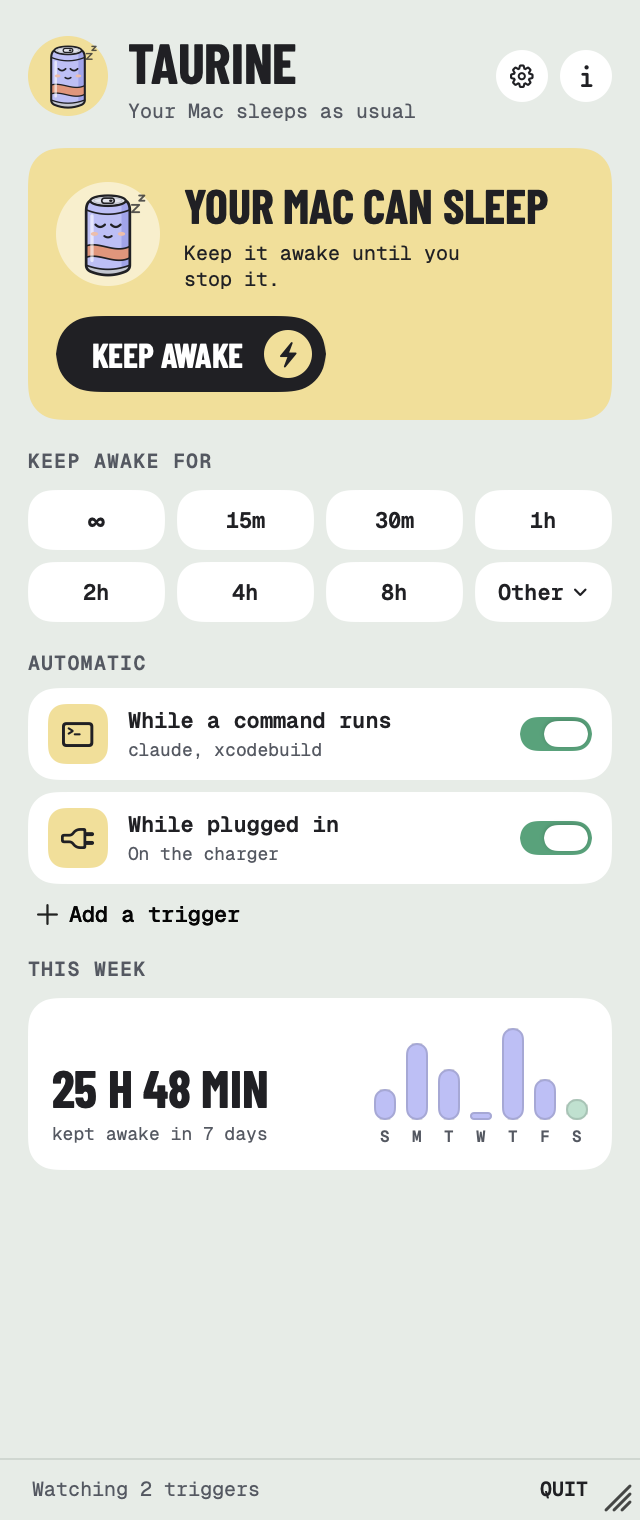
A can of energy drink in your menu bar. Keep your Mac awake for an hour, until a time or until you stop it, or let it stay awake by itself while a build runs, a download finishes or Claude Code is working.

For Mac · macOS 14 or later · Lives in your menu bar · Installs with Homebrew · Open source

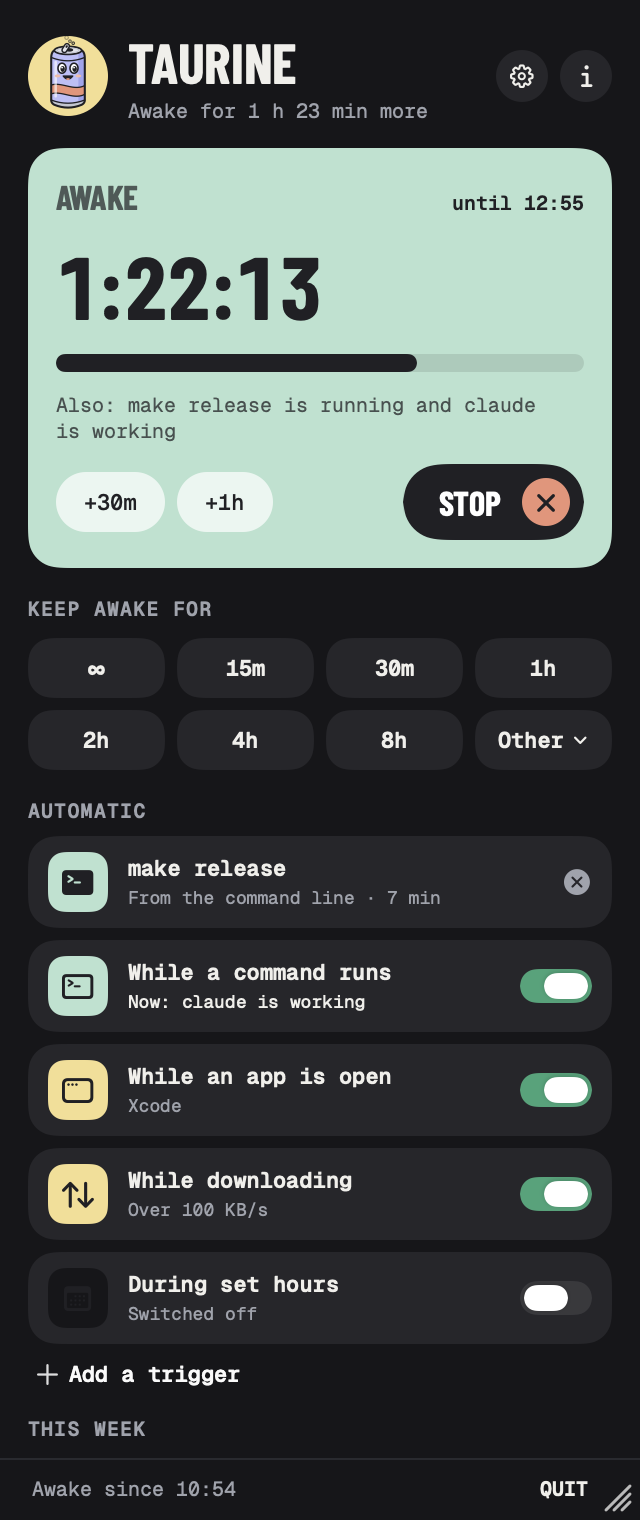
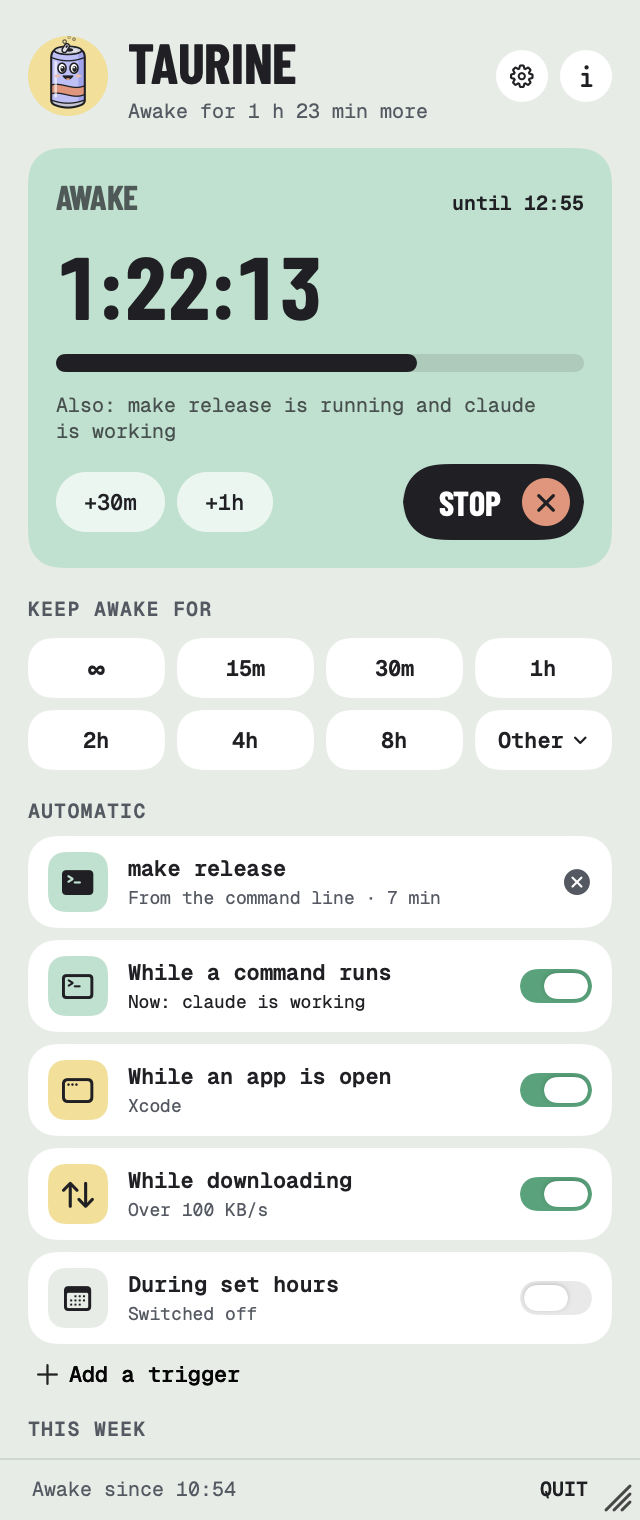
Taurine's panel: awake for 1:22:13 more, until 12:22, with make release running and Claude Code working as well. Below are the lengths to pick from and the automatic triggers

What it does

Awake when
it matters

Your Mac goes to sleep when you leave it alone, which is usually what you want. Not when a long build, an export or a big download is half done. Taurine keeps it awake for as long as you need, then lets it sleep as usual.

01

One click

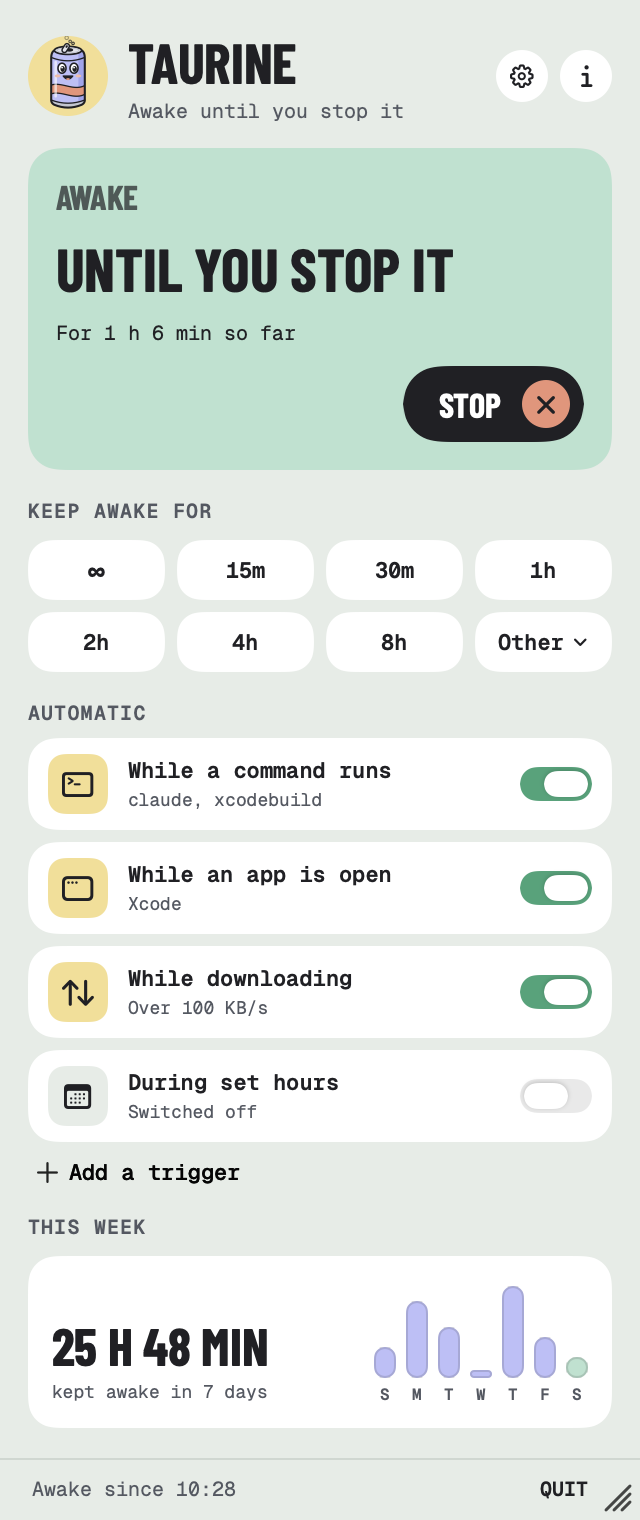
Click the can in your menu bar and pick a length: 15 minutes up to 8 hours, until you stop it, a length of your own or until a time of day. Add 30 minutes or an hour while it runs. The can is sealed while your Mac sleeps as usual and open while it's kept awake, and the drink goes down as a timer runs out.

The Mac menu bar showing Taurine's can, open and nearly full, with 1:22 left beside it
The panel with a timer running: 1:22:13 left, +30m and +1h buttons and a Stop button, then lengths from 15 minutes to 8 hours

02

Awake by itself

Add triggers and Taurine keeps your Mac awake while something's going on, then lets it sleep when it's over. While a command runs, while an app is open or in front, while downloading, while the Mac is busy, while plugged in, on chosen Wi-Fi networks, with an external display, or during set hours, such as weekdays 9 to 5 or overnight.

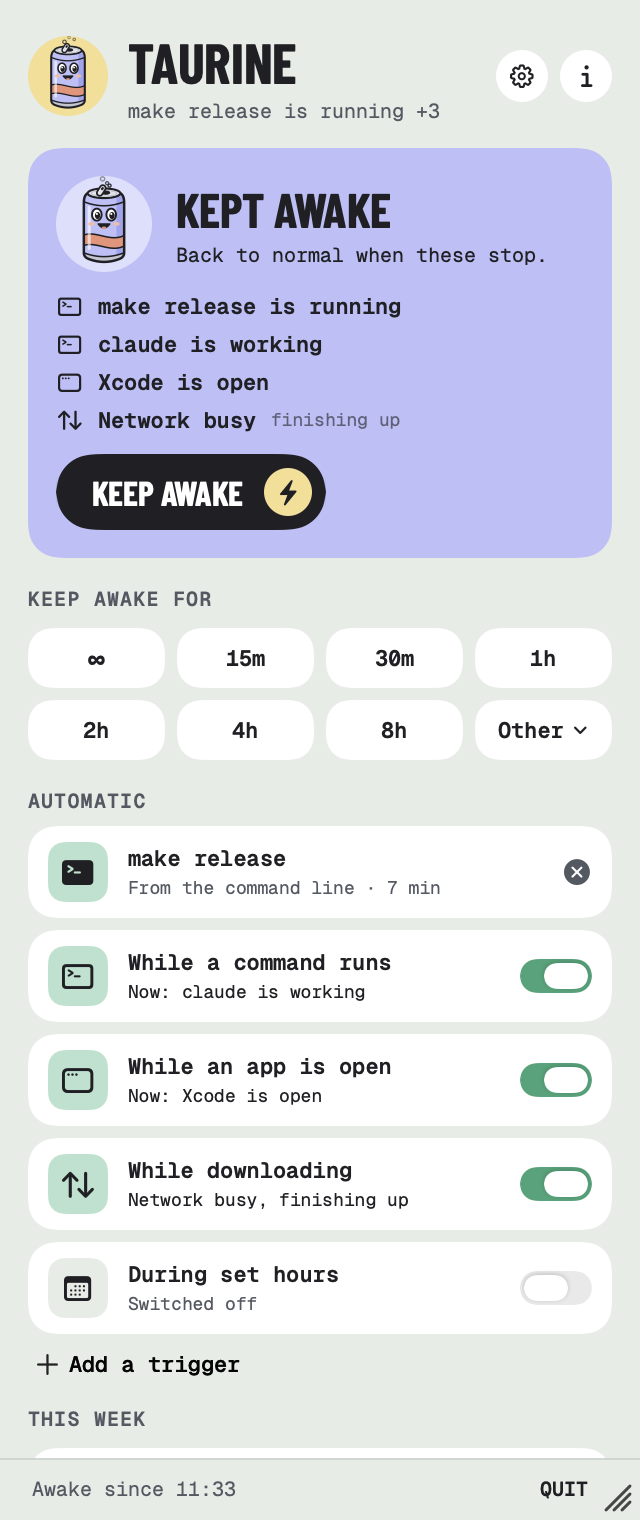
The panel kept awake by triggers: make release is running, claude is working, Xcode is open and the network is busy, finishing up. Back to normal when these stop

03

While it works

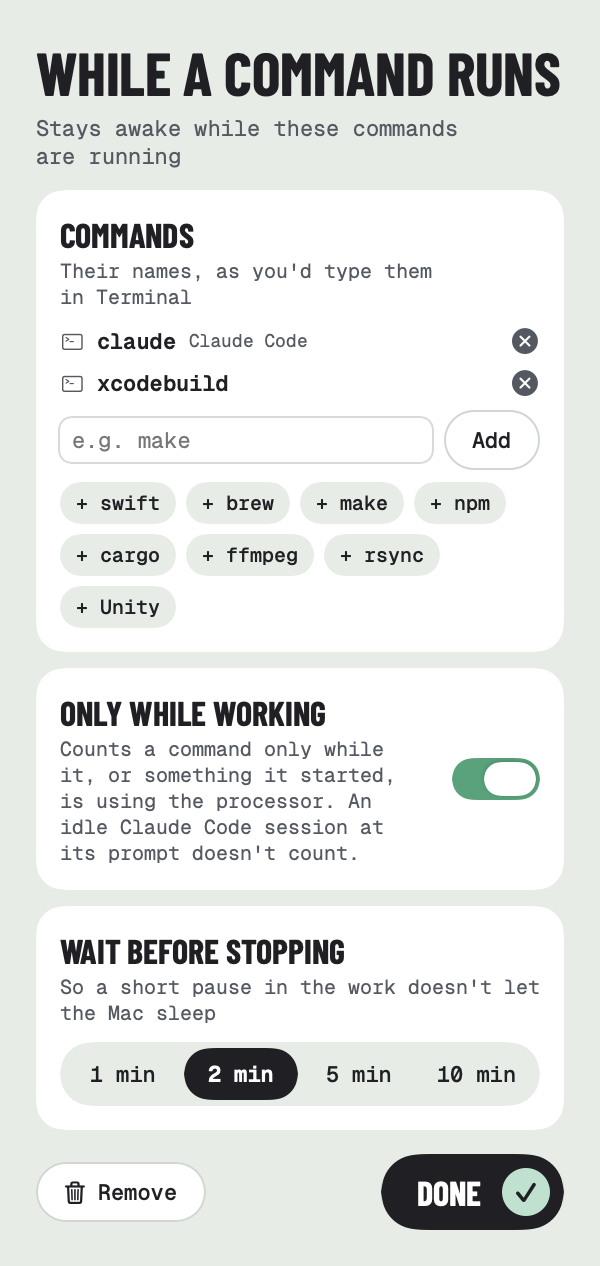
Pick commands such as claude, xcodebuild, brew or make, and your Mac stays awake while they run. Turn on Only while working and an idle Claude Code session sitting at its prompt doesn't count. Commands, downloads and a busy Mac wait a couple of minutes before letting go, so a short pause doesn't let it sleep.

The While a command runs trigger: claude and xcodebuild added, suggestions such as swift, brew, make and npm, Only while working, and wait 2 minutes before stopping

04

Kind to the battery

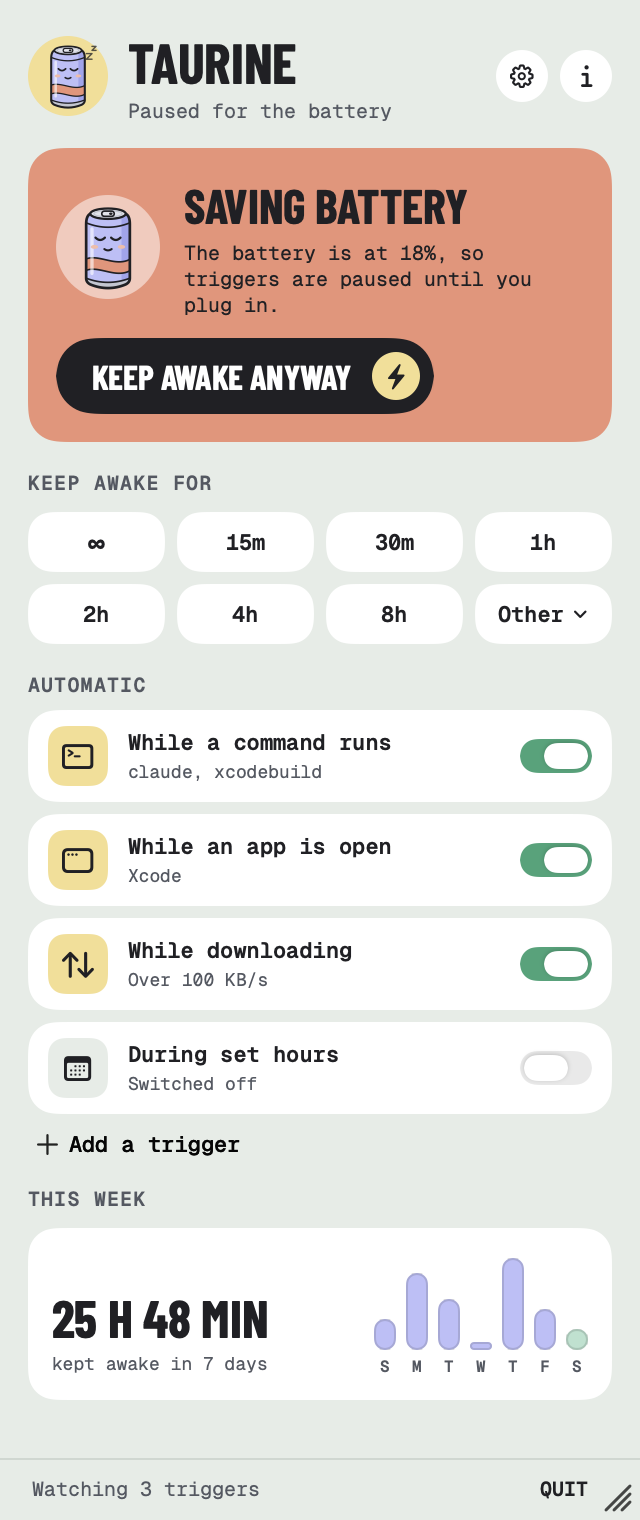
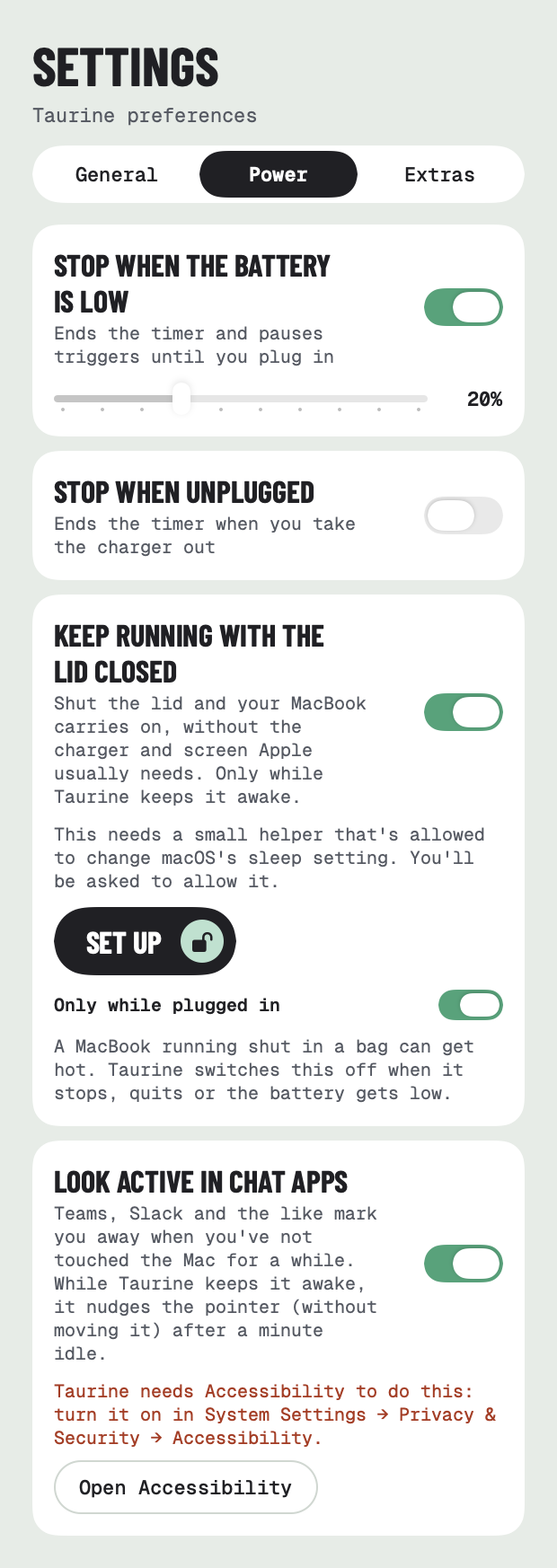
Keep the screen on too, or only the Mac, so the screen can turn off while it carries on working. On a MacBook, Taurine can stop when the battery gets low and pause triggers until you plug in, and stop the timer when you take the charger out.

The panel saving battery: the battery is at 18%, so triggers are paused until you plug in, with a Keep awake anyway button

05

From the command line

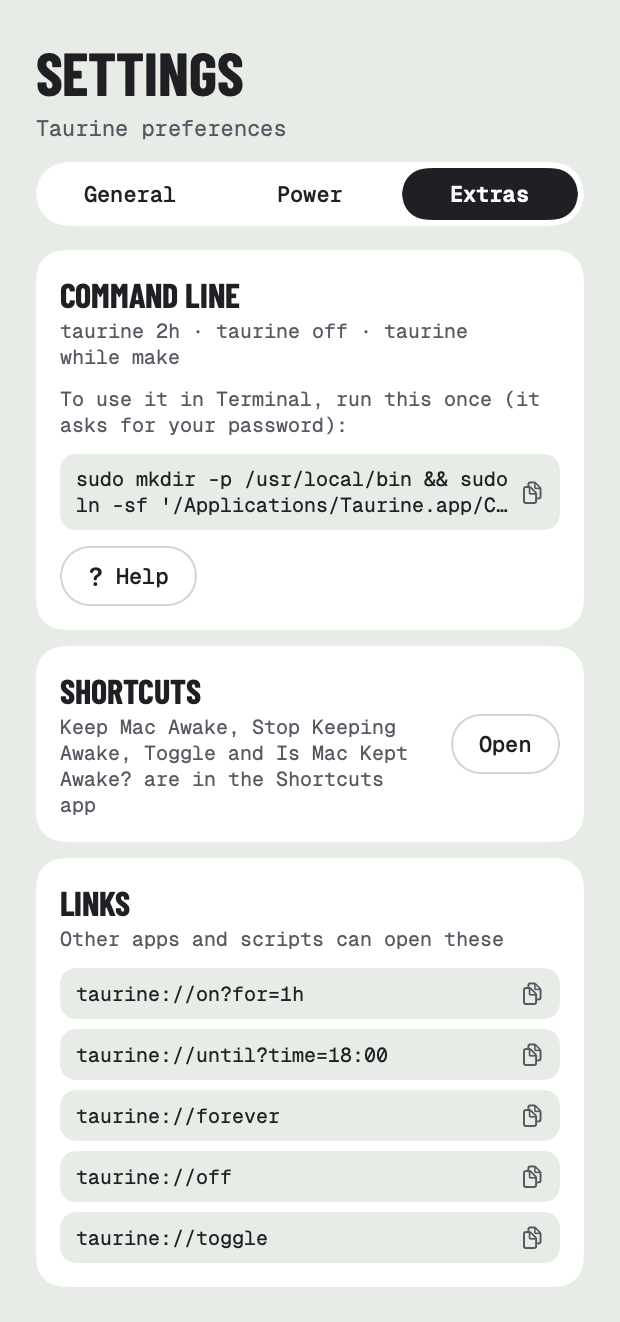
Homebrew installs the taurine command too. Keep awake for a while or until a time, run a command and stay awake until it ends (keeping its exit code), wait for a process to finish, or ask what Taurine is doing. Set up triggers from it too: add commands, apps, a schedule and more, switch them on and off, and list what each is doing. Shortcuts actions and taurine:// links do the same from other apps.

$ taurine 2h$ taurine until 18:30$ taurine while make release$ taurine wait 1234$ taurine trigger add command claude$ taurine trigger add schedule weekdays 9-17$ taurine triggers$ taurine off

06

Your way

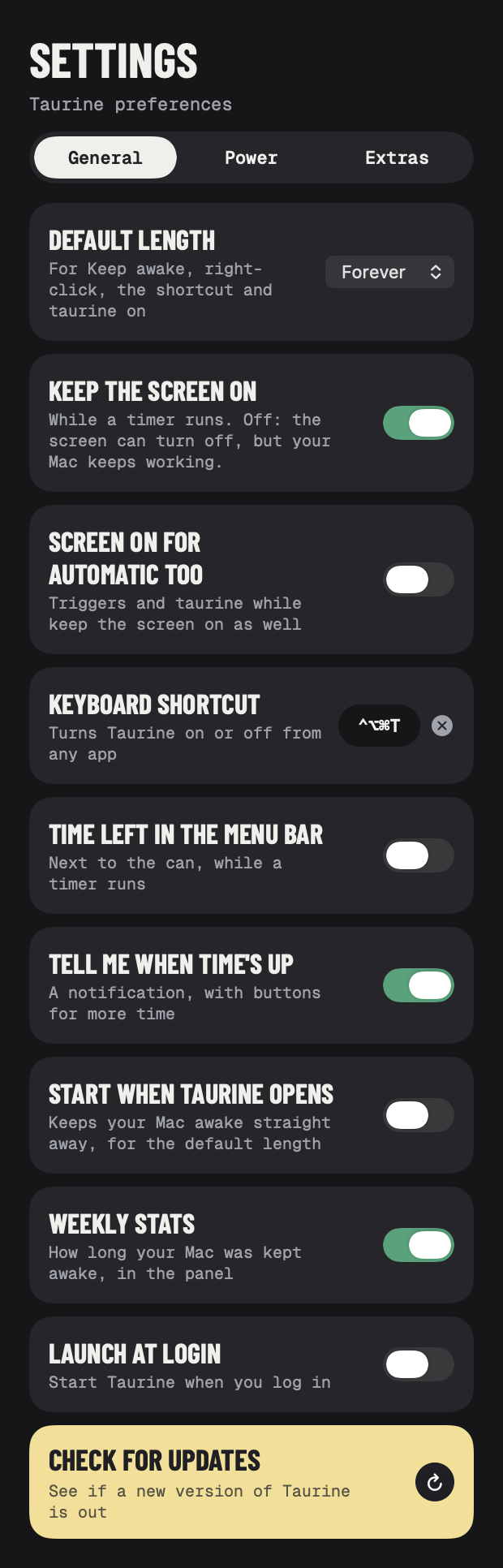
Choose the default length for a right-click, your keyboard shortcut and taurine on. Show the time left in the menu bar, get a notification when time's up with buttons for more time, keep your Mac awake as soon as Taurine opens, and start it at login.

Settings in dark mode: default length, keep the screen on, keyboard shortcut, time left in the menu bar, tell me when time's up, start when Taurine opens, weekly stats, launch at login and check for updates

And the little things

Thoughtful touches

Small details that make it easy to live with every day.

Lid closed

Shut a MacBook's lid and it keeps going, without the charger, display and keyboard Apple's clamshell mode needs. A tiny helper you approve switches it on only while Taurine keeps your Mac awake, and off again when it stops. By default only while plugged in.

Look active

Teams, Slack and the like mark you away when you haven't touched your Mac for a while. Turn this on and, while Taurine keeps it awake, it nudges the pointer after a minute idle, without moving it.

Shortcuts and links

Keep Mac Awake, Keep Mac Awake Until, Stop Keeping Mac Awake, Toggle Keeping Mac Awake and Is Mac Kept Awake? in the Shortcuts app, and links such as taurine://on?for=1h30m for other apps and scripts.

Weekly stats

See how long your Mac was kept awake each day this week, right in the panel. The numbers stay on your Mac.

Updates itself

Check for updates in Settings. Taurine quits, updates through Homebrew and reopens.

Native, light and dark

Built in SwiftUI with no Electron. Light and dark mode, and a can that dozes while your Mac can sleep and is wide awake and fizzing while it's kept awake.

Private by design

It all stays
on your Mac

On your Mac

Your settings, triggers and weekly stats are kept on your Mac. To spot the commands and apps you pick, Taurine looks at what's running, and nothing about it leaves your Mac.

Not where you are

The Wi-Fi trigger asks for Location only because macOS won't tell apps the network's name without it. Taurine never looks at where you are. It checks for updates only when you press Check for updates.

No tracking

No analytics, no accounts and nothing collected. It's open source, so you can check.

Download & install

Taurine is free. It installs with Homebrew, a free and widely used tool for installing Mac apps and keeping them up to date. You only need to set it up once.

  1. Get Homebrew. Download the installer, open it and click through, like any Mac installer. It asks for your Mac password. Already have Homebrew? Skip to step 2.

    Download Homebrew
  2. Open Terminal, an app that comes with every Mac. Press ⌘ Space, type Terminal and press Return. A window with a blinking cursor opens.

  3. Click Copy, paste into Terminal with ⌘ V and press Return. Text scrolls past while Homebrew installs Taurine and its taurine command. It's done when it stops.

    Install Taurine
    $ brew tap RossNicholson/tap$ brew trust --cask rossnicholson/tap/taurine$ brew install --cask taurine

    See command not found: brew? Quit Terminal with ⌘ Q, open it again and paste once more.

  4. Open Taurine from your Applications folder. If your Mac asks whether you're sure you want to open it, click Open. The can appears in your menu bar: click it and pick how long to stay awake.

What your Mac will ask

Your Mac checks with you before an app can do certain things. Here's what Taurine asks for, and what to click. Most only come up if you turn on the feature that needs them.

  • Notifications. So Taurine can tell you when time's up, macOS asks to let it send notifications. Click Allow, or turn the notification off in Settings.
  • Closed-lid mode. When you set it up, Taurine asks you to allow its helper. Switch Taurine on in System Settings → General → Login Items.
  • Location. Only for the Wi-Fi trigger, because macOS won't tell apps the network's name without it. Click Allow. Taurine never looks at where you are.
  • Accessibility. Only for Look active in chat apps. Turn Taurine on in System Settings → Privacy & Security → Accessibility.
  • Launch at login. If you turn it on in Settings, macOS shows a notice that a login item was added. That's expected.

On an older Homebrew, an error about brew trust is safe to ignore.

Stay wide awake

Taurine is free, open source, and signed and notarized by Apple.

Enjoying it? Buy me a coffee ☕ · Need help? Support

Also from me: ClawdBar, your Claude Code limits in the menu bar, and Repo Radar, every repo with work you haven't pushed

Taurine is an independent app and isn't affiliated with or endorsed by Anthropic, Microsoft, Slack or Homebrew. Claude Code is a trademark of Anthropic.